Linux Knowledge
Notes on Linux commands, permissions, process, network and storage management, plus shell scripting, text processing, scheduled tasks, and firewall configuration.
Updated
Common Directories
/: root directory/root: Home of the root user/home/${username}: Home of a regular user/etc: configuration file directory/bin: command directory/sbin: administration command directory/usr/bin//usr/sbin: other commands preinstalled with the system
Common Commands
Some Common Commands
# change the hostname
hostnamectl set-hostname hostname

# clear the file content, and write 'content' into file
echo "content" > file

# make an image of the /dev/sr0 disk, saved as /data/xxx.iso
dd if=/dev/sr0 of=/data/xxx.iso

# mount the /dev/sr0 disk to /mnt/cd
mount /dev/sr0 /mnt/cd

# view CPU information
lscpu

# create file outFile, whose content is 4M read from inFile, repeated 10 times, for a total size of 40M
dd if="${inFile}" bs=4M count=10 of="${outFile}"

# create sparse file outFile, allocating 20 * 4M of blank space, then reading 4M from inFile, repeated 10 times; the final file size is 120M, with 40M of actual content
dd if="${inFile}" bs=4M count=10 seek=20 of="${outFile}"

# return with code 1
exit 1

# if the code above had an error, exit returns the last error code
# if there was no error, it returns 0
exit

# measure command runtime
time ls

# iterate 1-100, writing to lines.txt
seq 1 100 > lines.txt

# output file content, prepending a line number to each line
cat -n lines.txt

# see who the currently logged-in user is
whoami
Viewing Command Help
man
You can use man to view help information for commands, divided into 9 types:
- Executable programs or commands
- System calls (functions provided by the kernel)
- Library calls (functions in program libraries)
- Special files (usually located in /dev)
- File formats and conventions, e.g. /etc/passwd
- Games
- Miscellaneous (including macro packages and conventions), e.g. man(7), groff(7)
- System administration commands (usually root only)
- Kernel routines, deprecated
Use man ${command} to get command help. When there are duplicate names, you can specify which help to get by number — for example, man 5 passwd and man 1 passwd are different.
By default, type 1 is queried.
If you are not sure which type to query, use man -a ${command} to query all help entries with the same name across types 1-9.
type
If you want to know what the thing being executed is — an alias, function, command, executable program, etc. — use type ${command}.
help
For builtin commands (commands built into the shell interpreter), use help ${command} to view help, e.g. help cd.
For external commands (non-builtin), use ${command} --help, e.g. ls --help.
info
info shows more detailed documentation than help, generally as a supplement to help, e.g. info ls.
ls
ls -a: show everything, including hidden filesls -l: show detailed information; when summing file sizes, only the file content size is countedls -r: show in reverse orderls -t: sort by timels -R: recursively show all filesls -h: show file sizes in formatted form
cd
cd -: go back to the last visited directory, similar to a browser's back buttoncd ~: go to the current user's Homecd /etc: enter an absolute pathcd etc: enter a relative path
mv / cp
You can use the wildcards ? and *:
?: matches any single character*: matches any number of any characters
Text Viewing Commands
cat
cat: print file content in the terminal.
head
head shows the beginning of a file; by default the first 10 lines are printed to the terminal. You can specify how many lines to print via head -${line} ${file}, e.g. head -2 ~/.zsh_history.
tail
tail shows the end of a file; by default the last 10 lines are printed to the terminal. You can specify how many lines to print via tail -${line} ${file}, e.g. tail -2 ~/.zsh_history.
tail -f: after the file is updated, the updates are shown in sync. This blocks interactively and must be terminated with ctrl c. Essential when viewing log files.
wc
wc can count file content information:
wc -l ${file}: show the number of lineswc -c ${file}: count byteswc -m ${file}: count characterswc -L ${file}: how long the longest line iswc -w ${file}: count how many words are in the file
more / less
morepages through a file, turning pages with the spacebar, one page at a timelessshows a file line by line, in a state similar tovim, controlled with the arrow keys, PageUp, PageDown
tar
tar can pack, unpack, compress, and decompress files.
Packing and Compressing
tar c: pack files, merging files togethertar f: specify the operation type as filetar v: show the operation process
cf is generally used together, i.e. tar cf ${packed file name} ${directory to pack}. The file name usually ends with .tar, indicating it was packed with tar.
But packing this way does not compress the files. For easier transfer, compression via gzip or bzip2 is usually needed. tar has compression built in: declare z to use gzip compression, or j to use bzip2 compression — i.e. tar czf ${packed file name} ${directory to pack} or tar cjf ${packed file name} ${directory to pack}.
To distinguish compressed from uncompressed, compressed files generally use .tar.gz for gzip compression and .tar.bz2 for bzip2 compression.
Since double extensions are long, .tgz is generally used for .tar.gz and .tbz2 for .tar.bz2.
bzip2 has a higher compression ratio but takes longer; choose as needed.
Decompressing and Unpacking
tar x: unpack files, restoring the archive to files / directoriestar f: specify the operation type as filetar z: decompress withgziptar j: decompress withbz2
vi
vim is an extended version of vi, backward compatible. vi has four modes:
- Normal mode
- Insert mode
- Command mode
- Visual mode
Normal Mode
i: enter insert mode, cursor at the current positionI: enter insert mode, cursor at the beginning of the current linea: enter insert mode, cursor at the position after the current oneA: enter insert mode, cursor at the end of the current lineo: enter insert mode, insert a line below, and move the cursor to the new lineO: enter insert mode, insert a line above, and move the cursor to the new liney: yank (copy)yy: yank the current line${line}yy: yank${line}linesy$: yank everything from the current position to the end of the line
d: delete (cut)dd: cut the current lined$: cut everything from the current position to the end of the current line
p: pasteu: undoctrl r: redo (undo the undo)x: delete the current characterr${char}: replace the current character with the specified characterMoving the cursor
h/j/k/l: move the cursor left / down / up / right${line}shift g: move to the beginning of line${line}gg: go to the first lineG: go to the last line^: go to the beginning of the line$: go to the end of the line
:: enter command modev: enter character visual modeV: enter line visual modectrl v: enter block visual mode
Command Mode
:w ${file}: save as a file; omitting${file}means save:q: quitvi:q!: quit without saving:!${shell}: execute the${shell}command, temporarily leavingvi; after the command output exits, return tovi:/${string}: search for matching content;nfinds the next,ctrl nfinds the previous- Text replacement
:s/${old}/${new}: replace old with new, only in the current line; to replace all, use:s/${old}/${new}/g:%s/${old}/${new}: replace old with new across the entire file; to replace all, use:%s/${old}/${new}/g:${startLine},${endLine}s/${old}/${new}: replace old with new in the range${startLine}to${endLine}; to replace all, use:${startLine},${endLine}s/${old}/${new}/g
:set: temporarily change settings:set nu: show line numbers:set nonu: hide line numbers:set hlsearch: highlight search:set nohlsearch: disable search highlight
Visual Mode
v: character visual — from the current position, select consecutive characters by movingV: line visual — from the current position, select lines one by one by movingctrl v: block visual — from the current position, select blocks one by one by moving; a block is a rectangular region
After selecting, shift i + pressing esc twice can quickly add a specified character to every line in the block.
Permission Management
User Permissions
User Management
useradd ${username}: add a user; creates a Home directory at the same time, and records it in/etc/passwdand/etc/shadow; if no group is specified, a group with the same name as the user is createduseradd -g ${group} ${username}: add a user into the specified group instead of creating a new same-named group
id ${username}: confirm whether the specified user existspasswd ${username}: change a user's password; if${username}is not given, changes the current user's passworduserdel ${username}: delete a user without deleting user data; Home is kept and set to ownerless permissions, accessible only byrootuserdel -r ${username}: completely delete the user and all user data, including Home
usermod [options] ${username}: modify user attributesusermod -d /home/xxx ${username}: change the user's Home directory to/home/xxxusermod -g ${group} ${username}: put the user into the specified group
chage: change password expiration information, such as password validity period, password change interval, etc.
Group Management
groupadd ${group}: add a user groupgroupdel ${group}: delete a user group
Switching Users
su: switch usersu ${username}: switch identity but stay in the current terminalsu - ${username}: switch identity, logging into the corresponding user's terminal and switching to that user's Home
sudo: execute a command as another user; requires password verification for the corresponding uservisudo: configure which users (groups) can usesudoand which permissions they can execute; requires verification with the current user's password
User Configuration File
vi /etc/passwd opens the user configuration file.
root:x:0:0:root:/root:/bin/bash
root: usernamex: whether password verification is required;xmeans required0: useruid. Linux identifies users byuid; if a regular user'suidis changed to0, the regular user also becomes arootuser. Regular users generally auto-increment from1000.0: the id of the group the user belongs to.root: comment information/root: the user's Home directory/bin/bash: the command interpreter opened after the user logs in
User Password Configuration File
vi /etc/shadow opens the user password configuration file.
he110:$6$TmibBbIpSjJs1Q8V$gMyULqUA0J65TKuHCSzR6123456/5Q2v.J/wAwFDnc7W08atsoe/6tx0GmYNKar3R/Q5fhAqRAg9CS3ZiwPWi.:19935:0:99999:7:::
he110: username$6$TmibBbIpSjJs1Q8V$gMyULqUA0J65TKuHCSzR6123456/5Q2v.J/wAwFDnc7W08atsoe/6tx0GmYNKar3R/Q5fhAqRAg9CS3ZiwPWi.: the user's encrypted password; even identical passwords differ after encryption.
Group Configuration File
vi /etc/group opens the group configuration file.
test:x:0:root
test: group namex: whether password verification is required;xmeans required0: group IDroot: which group the current group belongs to;rootmeans it belongs to therootgroup
File Permissions
Viewing File Permissions
Use ls -l to view file permissions.
drwxr-xr-x 3 username groupname filesize createdTime filename
drwxr-xr-x is the access permission information.
d: file type-: regular filed: directoryb: block special file, i.e. a devicec: character special filel: symbolic linkf: named pipes: socket file
r: whether read permission is granted;-if not, numerically4w: whether write permission is granted;-if not, numerically2x: whether execute permission is granted;-if not, numerically1
rwx forms one group, repeated three times:
- The 1st
rwxgroup is the operation permission of the file's owning userusername - The 2nd
rwxgroup is the operation permission of the file's owning groupgroupname - The 3rd
rwxgroup is the operation permission of other users
For directories:
x: enter the directoryr: list the file names in the directory; requiresxfirstw: modify file names inside the directory; requiresxfirst
Modifying File Permissions
chmod: modify file and directory permissionschmod +x ${file}: add execute permission for the owning user, owning group, and other userschmod u+x ${file}: add execute permission for the file's owning userchmod g-x ${file}: remove execute permission for the file's owning groupchmod o=r ${file}: set other users' permission to readchmod a=rw ${file}: set read-write permission for the owning user, owning group, and other userschmod 700 ${file}: only the owning user can read, write, and execute the file; the three digits represent the sum of each of the threerwxgroupsumask: usually022; the default permission for a new directory is777 - umask, i.e.755; new files have no execute bit by default, so the permission is666 - umask, i.e.644
chown: change the owning user and owning groupchown ${username} ${file}: change${file}to be owned by${username}chown :${groupname} ${file}: change${file}to be owned by${groupname}chown ${username}:${groupname} ${file}: change both the owning user and group of${file}
chgrp: change only the owning groupchgrp ${groupname} ${file}: change${file}to be owned by${groupname}
When the permissions of the owning user and the owning group conflict, the owning user is matched first, then the owning group, and finally other users.
For example,
user1ofgroup1has no permissions, butgroup1has read-write permission.
user1will not be able to read or write the file, while other users ingroup1can.
Special Permissions
SUID: for binary executable files; when the command is executed, the permission of the file's owning user is automatically obtained without a password — e.g. the password-changing command (/usr/bin/passwd)chmod 4755 ${file}: the leading 4 sets theSUIDpermission
SGID: for directories; new files and directories created in this directory automatically take the directory's owning group — used for file sharingchmod 2755 ${file}: the leading 2 sets theSGIDpermission
SBIT: for directories; new files and directories in this directory can only be deleted by root and by themselveschmod 1755 ${file}: the leading 1 sets theSBIT(sticky bit) permission
Network Management
Viewing Network Status
Older Linux versions use net-tools; newer versions use iproute.
net-tools includes:
ifconfig:lo: local loopbacketh1: onboard NICens33: PCI-E NIC; not present on older Linuxenp0s3: PCI-E NIC whose physical information cannot be obtained; not present on older Linuxeth0: used when none of the above match; refers to the first NIC, incrementing for multiple NICs
route: view the gateway; resolves IPs to hostnames, which is slow —route -nis recommendednetstat: view current network listening information
iproute includes:
ipss
ifconfig
Common fields in the output:
inet: network IPnetmask: network maskether: NIC MACRX packets: how many packets were receivedRX errors: how many error packets were receivedTX packets: how many packets were sentTX errors: how many error packets were sent
Renaming Network Interfaces
Editing the NIC configuration with vim /etc/default/grub can batch-rename NICs:
# parameters passed to the Linux kernel
GRUB_CMDLINE_LINUX="rd.lvm.lv=centos/root rd.lvm.lv=centos/swap rhgb quiet"

# changing to the following config makes NICs increment from eth0, without distinguishing NIC types
GRUB_CMDLINE_LINUX="rd.lvm.lv=centos/root rd.lvm.lv=centos/swap rhgb quiet biosdevname=0 net.ifnames=0"
To apply the grub configuration, use grub2-mkconfig -o /boot/grub2/grub.cfg.
Then reboot.
Gateway Configuration
ifconfig ${eth} ${ip} [netmask ${mask}]: set the NIC's IP address, mask, etc.ifup ${eth}: enable a NICifdown ${eth}: disable a NICroute add default gw ${gateway}: add the default gateway; changeaddtodelto deleteroute add -host ${IP} gw ${gateway}: add a host route; use the specified gateway when accessing the IProute add -net ${network segment} netmask ${mask} gw ${gateway}: use the specified gateway when accessing the network segmentip addr ls: equivalent toifconfigip link set dev ${eth} up: equivalent toifup ${eth}ip link set dev ${eth} down: equivalent toifdown ${eth}ip addr add 1.1.1.1/24 dev ${eth}: equivalent toifconfig ${eth} 1.1.1.1 netmask 255.255.255.0ip route add 1.1.1.1/24 via 192.168.0.1: equivalent toroute add -net 1.1.1.1 netmask 255.255.255.0 gw 192.168.0.1
Network Troubleshooting
ping: check host connectivitytraceroute: trace each route hop; shows where packets are lost. If an intermediate host does not support tracing, it shows*traceroute -w 1 www.baidu.com: with a 1s timeout, trace access to Baidu
mtr: integratespingandtraceroute, with richer outputnslookup: view DNS resolutiontelnet: check whether a port is reachable, e.g.telnet www.baidu.com 80tcpdump: packet capture tool, e.g.tcpdump -i any -n host 1.1.1.1 and port 80:-i: specify the NIC to capture on-n: do not resolve hostnames; show IP addresses in numeric formhost: specify the destination IPport: specify the destination portand: combine query conditions; not needed for a single condition
netstat: view port listening status, e.g.netstat -ntpl-n: do not resolve hostnames; show IP addresses in numeric form-t: view the TCP protocol-p: include the process name in the output-l:stateisLISTEN
ss: replacement fornetstat, e.g.ss -ntpl-n: do not resolve hostnames; show IP addresses in numeric form-t: view the TCP protocol-p: include the process name in the output-l:stateisLISTEN
Network Framework
Starting from version 2.4 of the Linux kernel, the kernel introduced a general-purpose filtering framework — Netfilter — allowing external code to intervene in network packets as they flow through the kernel protocol stack.
Various network functions in Linux systems — such as address translation, packet mangling, address masquerading, protocol connection tracking, packet filtering, transparent proxying, bandwidth limiting, and access control — are all implemented based on the code interception mechanism provided by Netfilter. It can be said that Netfilter is the most important cornerstone of the entire Linux network system, bar none.
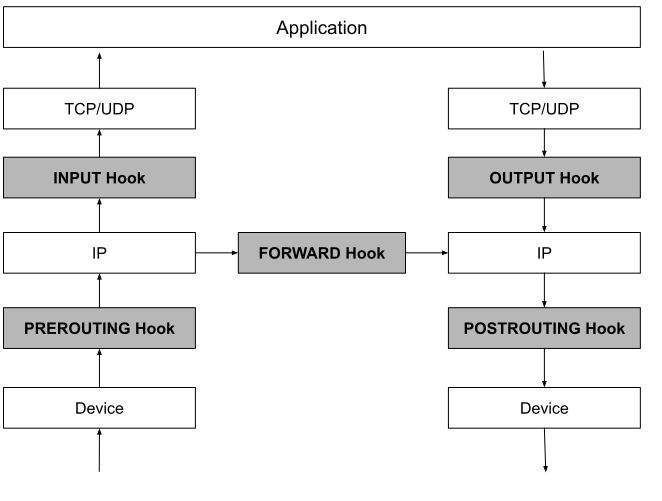
Netfilter embeds 5 hooks (also called hooks) around the network protocol stack (mainly at the network layer) to intervene in Linux network communication.
Other kernel modules (such as iptables, IPVS, etc.) register callback functions with these hooks. When a packet enters the kernel network protocol stack and passes through these hooks, the registered callbacks fire automatically, intervening in and processing the packet accordingly.
The names and meanings of these 5 hooks are as follows:
PREROUTING: triggered as soon as a packet enters the protocol stack from a device (such as a NIC). When we need to modify a packet'sDestination IP, this hook is used — thePREROUTINGhook is mainly used for destination network address translation (DNAT,Destination NAT).FORWARD: as the name suggests, forwards packets. The precedingPREROUTINGhook has not gone throughIProuting — it accepts all packets regardless of whether they are destined for this host. If a packet is found not to be destined for this host, theFORWARDhook is triggered to handle it. At this point, the host acts like a router, a relay station for network packets; the role of theFORWARDhook is to process these forwarded packets, protecting the real "backend" machines behind it.INPUT: triggered when a packet is found to be destined for this host. TheINPUThook is generally used to process packets destined for the local machine, and of course can also filter data to protect the host's security.OUTPUT: after a packet is delivered to the application layer and processed, the result is sent back to the requester; before going throughIProuting, this hook is triggered. TheOUTPUThook is generally used to process packets output by local processes, and can also restrict the host's access — for example, dropping all packets sent towww.example.org.POSTROUTING: triggered before any packet leaves the protocol stack, whether forwarded or processed by a local process. ThePOSTROUTINGhook is generally used for source network address translation (SNAT,Source NAT).
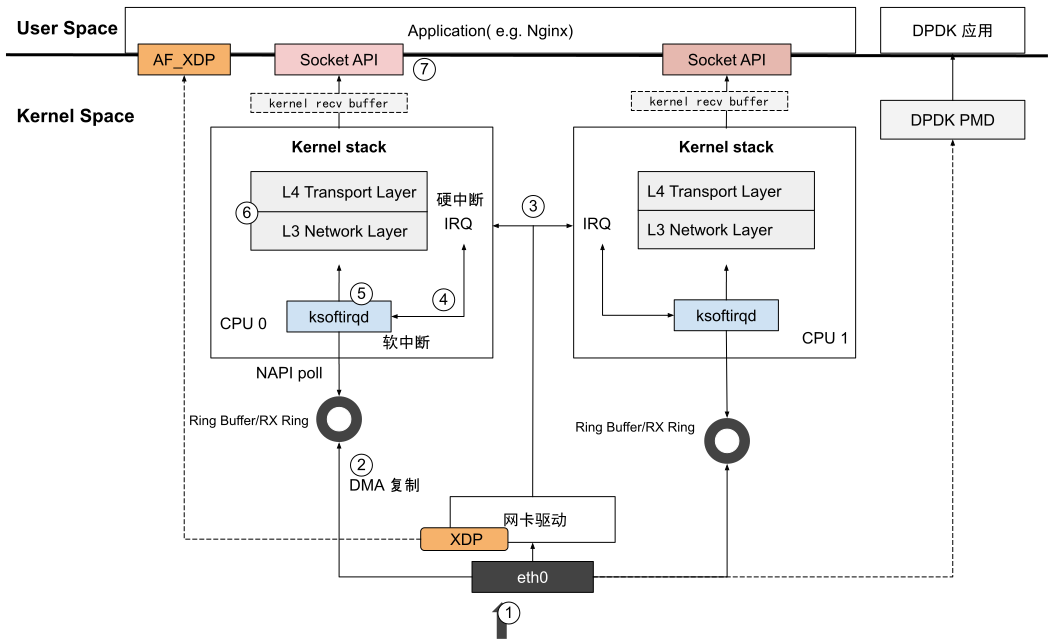
Network Packet Processing Flow
- When an external packet arrives at the host, it is first received by the NIC
eth0. - Via
DMA(Direct Memory Access), the NIC copies the packet into theRingBufferin the kernel, waiting for theCPUto process it. TheRingBufferis a circular data structure joined head to tail; as a buffer, it mitigates the problem that the NIC receives data faster than theCPUcan process it. - The NIC then raises an
IRQ(Interrupt Request, a hardware interrupt), notifying the kernel that a new packet has arrived. - The kernel calls the interrupt handler to mark that new data has arrived. It then wakes the
ksoftirqdkernel thread to perform soft interrupt (SoftIRQ) processing. - During soft interrupt processing, the kernel calls the NIC driver's
NAPI(New API)pollinterface to extract packets from theRingBufferand convert them intoskb(Socket Buffer) format.skbis the core data structure used by the networking subsystem to describe network packets; the kernel usesskbfor sending, receiving, and forwarding packets. - The
skbis passed to the kernel protocol stack and processed across multiple network layers:- Network layer (L3 Network layer): based on the host's routing table, decides which network interface the packet is routed to. The network interface here may be a virtual device introduced later, or the physical NIC
eth0interface. - Transport layer (L4 Transport layer): handles network address translation (NAT), connection tracking (conntrack), etc.
- Network layer (L3 Network layer): based on the host's routing table, decides which network interface the packet is routed to. The network interface here may be a virtual device introduced later, or the physical NIC
- After the kernel protocol stack finishes processing, the packet is passed to the
socketreceive buffer. The application reads the data from the buffer using system calls (such as theSocket API). At this point, the entire packet-receiving process ends.
The Cost of Transmission
Analyzing how a Linux system processes network packets, we notice a potential problem: the packet processing pipeline is overly long.
The pipeline involves multiple network protocol stack layers (data link layer, network layer, transport layer, application layer); encapsulation/decapsulation is needed between the layers, and there are frequent context switches (Context Switch) — all making the Linux kernel bottleneck impossible to ignore.
For designing network-intensive systems, tuning kernel parameters is an indispensable step.
Besides tuning kernel parameters, another group of people, holding the "if it doesn't work, bypass it" mindset, proposed a technical approach called "kernel bypass" (Kernel bypass). Among these, DPDK and XDP are representative intra-host kernel-bypass technologies, and RDMA is the representative inter-host kernel-bypass technology.
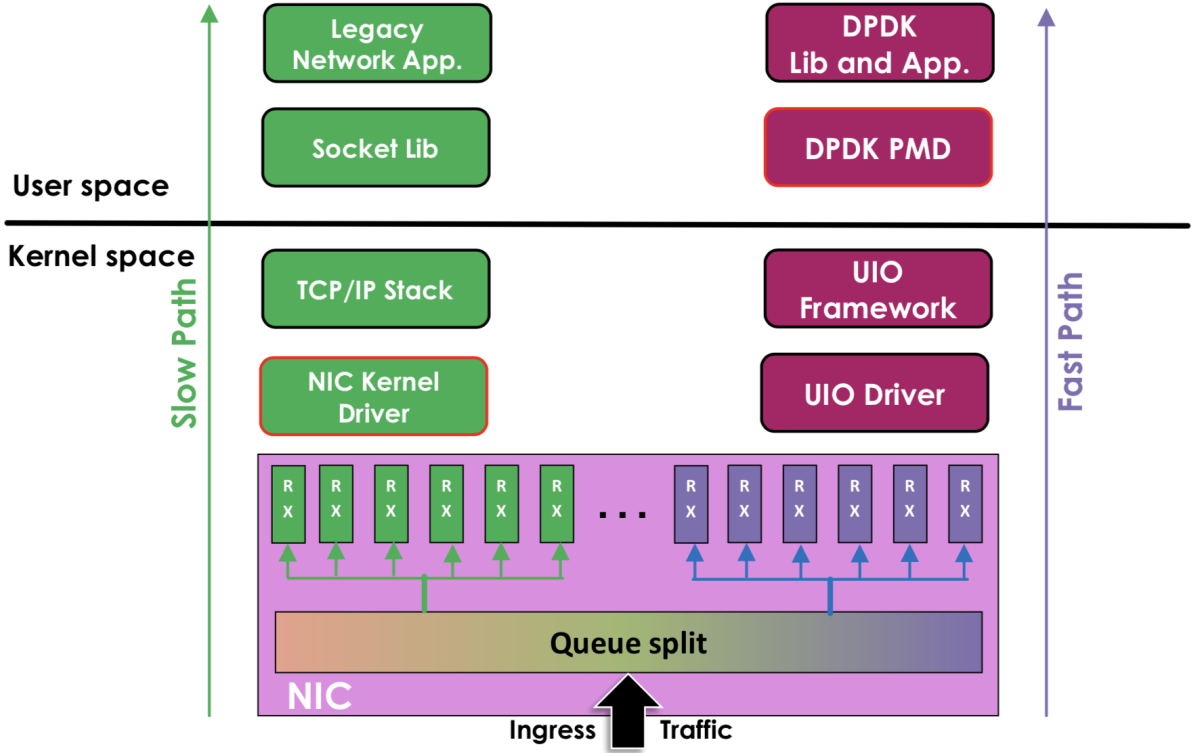
DPDK (Data Plane Development Kit)
- Traditional kernel networking (left side of the diagram): network packets travel from the network interface card (
NIC), through the driver and the kernel protocol stack, and finally to the business logic via theSocketinterface. DPDK-accelerated networking (right side of the diagram): in this scheme, network packets use user-spaceI/O(UIO) technology to bypass the kernel protocol stack directly, moving from the NIC to theDPDKbase libraries and then to the business logic. In other words,DPDKbypasses theLinuxkernel protocol stack's packet processing, sending, receiving, and processing packets directly in user space.
iQIYI's open-source
DPVSis a successful application ofDPDKtechnology in load balancing. In terms of packets forwarded per second (Packet Per Second, PPS),DPVSoutperformsLVSby 300%.
eBPF and the eXpress Data Path XDP
DPDK completely bypasses the kernel, passing packets straight through to user space for processing. XDP is the exact opposite: it processes packets in kernel space according to user logic.
The key to executing user logic in the kernel is BPF (Berkeley Packet Filter) technology — a mechanism that allows safely verified code to run in kernel space. Linux has supported BPF since kernel 2.5, but early BPF was mainly used for capturing and filtering network packets. With Linux kernel 3.18, developers introduced a brand-new BPF architecture — what we today call eBPF (Extended Berkeley Packet Filter). Compared with early BPF, eBPF is no longer limited to network analysis; it can access almost all resources associated with the Linux kernel, gradually evolving into a versatile general-purpose execution engine.
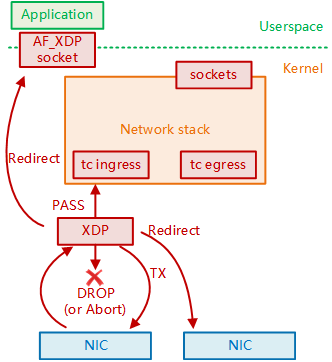
XDP is essentially a hook that the Linux kernel embeds in the network path — located inside the NIC driver layer, before packets enter the network protocol stack. If an eBPF program is attached to the XDP hook, it can intervene at the earliest stage of packet reception in a Linux system, avoiding the extra overhead of packets "dutifully" entering the kernel.
After executing the eBPF logic, XDP outputs a "return code" representing the final verdict on what should be done with the packet. The 5 return codes supported by XDP and their meanings are:
XDP_ABORTED: indicates theXDPprogram encountered an error or exception while processing the packet.XDP_DROP: drop the packet directly at the NIC driver layer; typically used to filter invalid or unwanted packets, e.g. dropping malicious packets forDDoSprotection.XDP_PASS: the packet continues to the kernel's network protocol stack, consistent with traditional processing. This letsXDPcontinue using the traditional kernel protocol stack when needed.XDP_TX: the packet is re-sent to the inbound network interface (usually a modified packet). This can be used for fast packet forwarding, modification, and loopback testing (e.g. in load balancing scenarios).XDP_REDIRECT: redirect the packet to another NIC orCPU; combined withAF_XDP, packets can be sent directly to user space.
The following steps give a further understanding of how an eBPF program is loaded, verified, and executed by the Linux kernel:
- The written
eBPFprogram is compiled by a compiler intoeBPFbytecode. - The compiled code is loaded by the high-level language library corresponding to
eBPF, and the high-level language handles the system calls.eBPFcurrently supportsGolang,Python,C/C++,Rust, etc. - After trapping into the kernel via the system call, the kernel's
eBPFverifier first verifies the program — this step ensures the program itself is sound: it won't crash, won't loop forever, and has no permission anomalies; then the program, compiled intoeBPFpseudo-code, is converted into concrete machine instructions and finally attached to the corresponding hook (or tracepoint). - When the kernel processes a tracepoint that happens to have an
eBPFprogram, the event is triggered and handled by the loadedeBPFprogram.
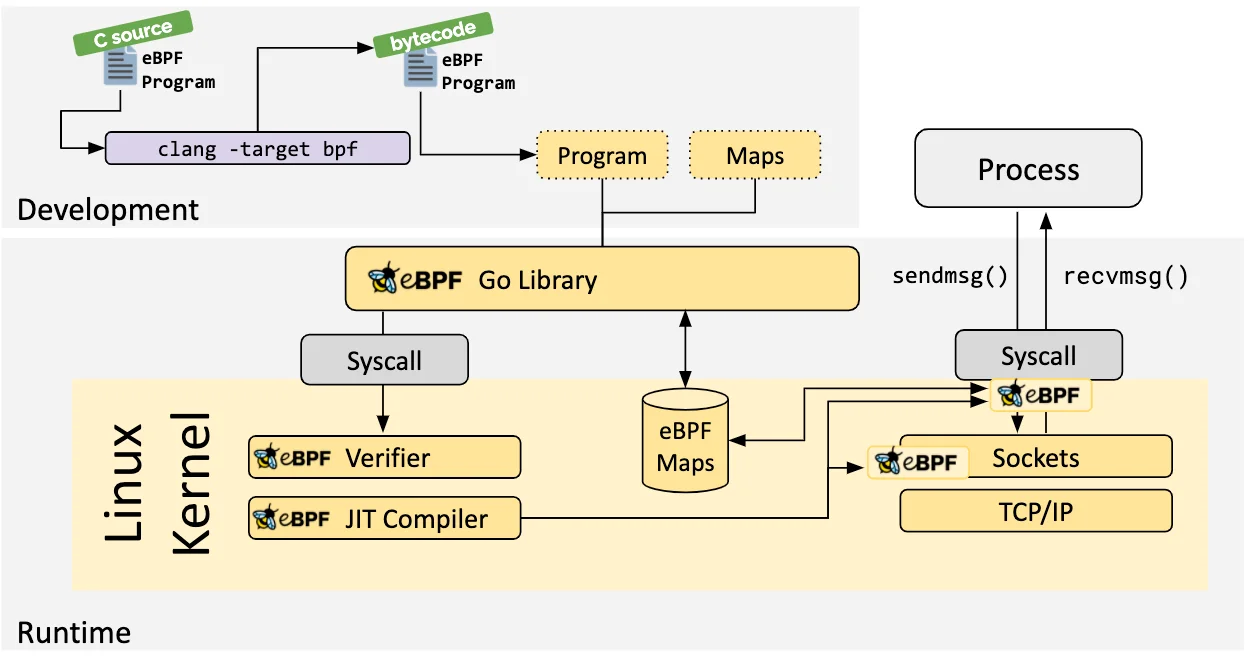
eBPF can dynamically load and execute user-defined code without modifying kernel source, and is widely used in multiple Linux kernel subsystems such as networking, tracing, and the Linux Security Module (LSM). Open-source projects based on eBPF keep emerging, such as Facebook's high-performance network load balancer Katran, the kernel tracing and debugging tools BCC and bpftrace, and Isovalent's container networking solution Cilium.
Taking Cilium as an example, it implements a brand-new conntrack and NAT mechanism on top of the eBPF and XDP hooks (among others), and on that basis builds advanced features such as L3 / L4 load balancing, network policies, observability, and security authentication.
Because the underlying network functions implemented by Cilium are now independent of Netfilter, its connection tracking data and NAT rule data are not stored in the Linux kernel's default conntrack table and NAT tables. Regular Linux commands such as conntrack, netstat, ss, and lsof cannot view the NAT rules and connection tracking data — you have to use the query commands provided by Cilium, for example:
cilium bpf nat list ## list the NAT rules configured in Cilium.
cilium bpf ct list global## list the connection tracking entries in Cilium
RDMA (Remote Direct Memory Access)
Traditional Ethernet has inherent shortcomings in network latency, throughput, and CPU resource consumption. Against this backdrop, RDMA (Remote Direct Memory Access), a technology widely used in high-performance computing, stands out.
RDMA's design is inspired by DMA (Direct Memory Access) — a technology that allows hosts to directly access each other's memory.
With DMA, devices inside a host (such as disks or NICs) can exchange data directly with memory without CPU involvement. As shown in the diagram, RDMA works by having applications bypass the host operating system and the TCP / IP protocol stack through a dedicated interface (the RDMA Verbs API), achieving direct access to a remote host's memory.
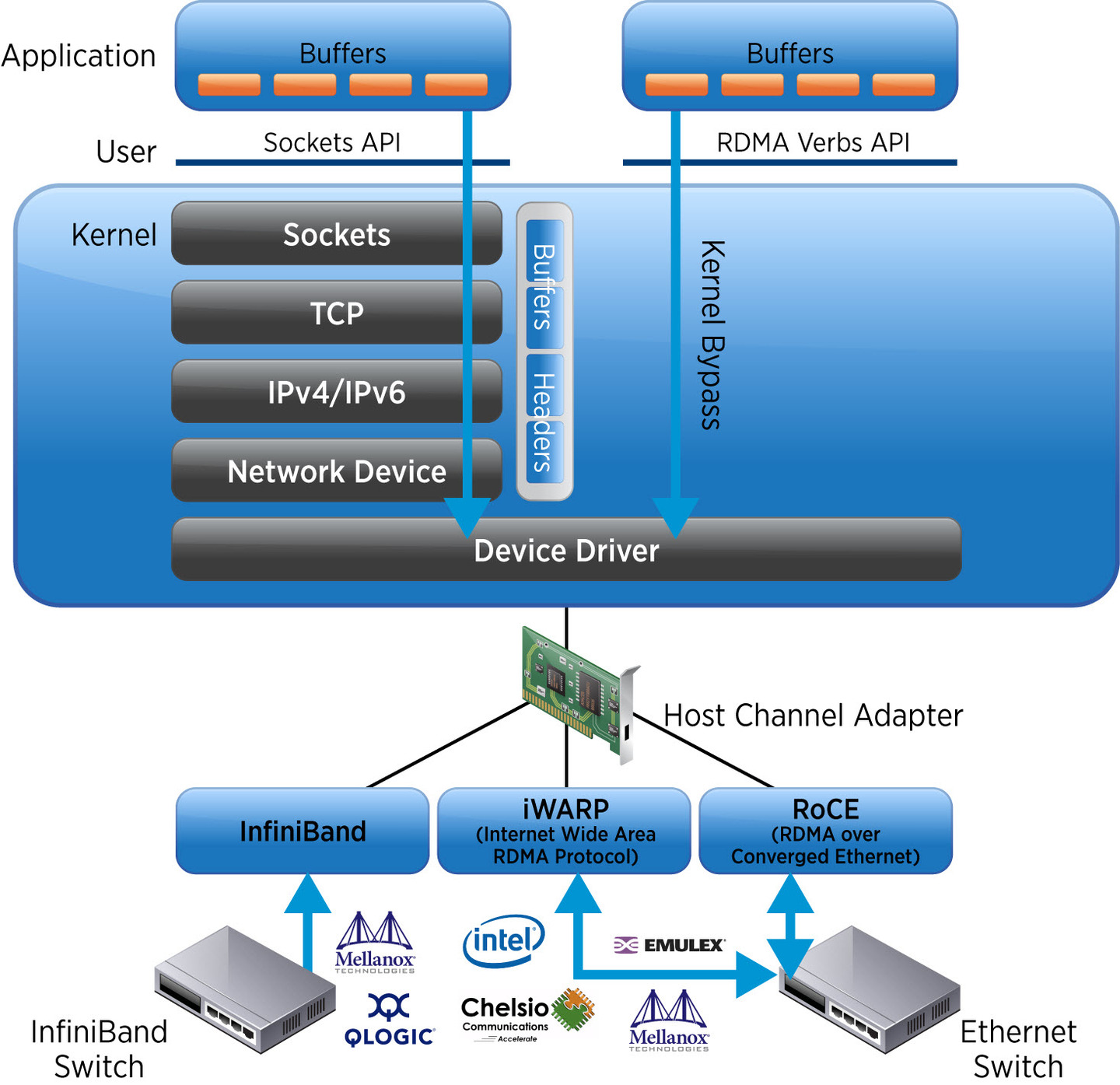
RDMA network protocol implementations fall into three categories: Infiniband, iWARP, and RoCE. Their meanings and differences are as follows:
Infinibandis a technology purpose-built forRDMA, proposed in 2000 by theIBTA(InfiniBand Trade Association). Prized in high-performance computing (HPC) for its extreme performance (latency under 3 μs and network throughput above 400Gb/s). But note that building anInfinibandnetwork requires a full set of dedicated equipment — dedicated NICs, dedicated switches, and dedicated cables — which limits its adoption. Second, its architecture is closed and incompatible with existing Ethernet standards, meaning the vast majority of general-purpose data centers cannot accommodateInfinibandnetworks.Despite these drawbacks,
Infinibandremains the first choice in certain fields due to its outstanding performance. For example, the distributed machine learning system behind the globally popular AI applicationChatGPTis built on anInfinibandnetwork.iWRAP(Internet Wide Area RDMA Protocol) encapsulatesRDMAinside theTCP/IPprotocol.RDMAnetworks are born for high performance, while theTCP/IPprotocol is born for reliability — its three-way handshake, congestion control, and other mechanisms strippediWRAPof most ofRDMA's advantages. So this inherent design flaw causediWRAPto be gradually abandoned by the industry.\To lower the cost of using
RDMAand bring it to general-purpose data centers, in 2010 the IBTA releasedRoCE(RDMA over Converged Ethernet), "porting"Infiniband's data standard (IB Payload) onto Ethernet. With justRoCE-capable NICs and standard Ethernet switches, you can enjoy the high performance ofRDMA.RoCEv1is based on layer-2 Ethernet, confined to the same subnet and unable to communicate across subnets.RoCEv2is based on layer-3 IP networks and supports cross-subnet communication.
RoCEv2 solved RoCEv1's inability to cross subnets. With its low cost and compatibility advantages, RoCE began to be widely used in general-purpose data center scenarios such as distributed storage and parallel computing. According to public information from the cloud platform Azure, by 2023, 70% of all traffic in Azure's data centers was already RDMA traffic.
RDMA networks are extremely sensitive to packet loss — any lost packet can cause massive retransmissions, degrading transmission performance. Infiniband networks rely on dedicated equipment to ensure network reliability, while RoCE networks implement RDMA over standard Ethernet, which requires the infrastructure to provide lossless Ethernet capabilities to avoid severe performance impact from packet loss.
Currently, most data centers use the
DCQCNalgorithm (proposed by Microsoft and Mellanox) or theHPCCalgorithm (proposed by Alibaba) to provide reliability guarantees forRoCEnetworks.
Package Management
Package Managers
CentOS and RedHat use yum as the package manager; the package format is rpm, with package names in the form ${software name}-${version}.${system version}.${platform}.rpm.
Common rpm commands:
rpm -q ${software}: query whether${software}is installedrpm -qa | more: query which packages are installed, pagedrpm -i ${xxx.rpm}: manually install the specified package; rpm cannot automatically install dependencies — missing dependencies must be handled manuallyrpm -e ${software}: manually uninstall the specified package
yum can automatically identify dependencies and download dependent packages; the repository configuration is stored in /etc/yum.repos.d/CentOS-Base.repo.
yum makecache: used after updating the repository; clears the package cache and re-downloads repository metadatayum install ${software}: install${software}yum remove ${software}: remove${software}yum list: list packagesyum grouplist: list package groupsyum update [${software}]: upgrade (the specified) package
Ubuntu and Debian use apt as the package manager; the package format is deb.
Common dpkg commands:
dpkg-query ${software}: query whether${software}is installeddpkg-query -l | more: query which packages are installed, pageddpkg -i ${xxx.deb}: manually install the specified package; dpkg cannot automatically install dependencies — missing dependencies must be handled manuallydpkg -r ${software}: manually uninstall the specified package
Compiling from Source
Package versions in package managers are usually old; to use the latest version you can install from binaries or compile from source. Some packages also do not provide package-manager installation and can only be installed manually.
A typical compile-from-source process:
# declare the version number to avoid repeated typing
version=1.15.8.1

# download the source code
wget "https://openresty.org/download/openresty-${version}.tar.gz"

# extract the source code
tar -zxf "openresty-${version}.tar.gz"

# enter the extracted source directory
cd "openresty-${version}/"

# configure for the runtime environment, e.g. set the install path
./configure --prefix=/usr/local/openresty

# compile the source into an executable; -j2 uses two CPU cores for compilation
# various problems may occur during compilation, such as gcc library version mismatches or missing dependency packages; refer to the error messages or official docs to resolve them
make -j2

# install the package
make install
Installation methods vary between software; refer to the installation instructions provided by the software.
Kernel Upgrade
# view the kernel version
uname -r
# upgrade the kernel version
yum install "kernel-${version}"
# update packages
yum update
Compiling and Installing the Kernel
# install compilation dependencies
yum install gcc gcc-c++ make ncurses-devel openssl-devel elfutils-libelf-devel

# the download needs to be done manually from the official site https://www.kernel.org

# source code storage path
$source='/usr/src/kernels'

# extract the kernel
tar xvf linux-5.1.10.tar.xz -C $source

# enter the source directory
cd "${source}/linux-5.1.10"

# === choose one of the following configuration methods === #

# configure via menu
make menuconfig
# enable all kernel features
make allyesconfig
# minimal kernel
make allnoconfig
# use the current system's kernel build configuration
cp /boot/config-kernelversion.platform "${source}/linux-5.1.10/.config"

# === configuration complete === #

# compile everything in the configuration, using 2 CPU cores
make -j2 all

# install the kernel-supported modules first
make modules_install
# then install the kernel
make install

# query the Linux grub configuration to find how many kernels there are
grep ^menu /boot/grub2/grub.cfg

# set which kernel is selected by default; 0 is the first one, i.e. the newer kernel
grub2-set-default 0
The grub configuration file is stored at /etc/default/grub.
# which options to add for Linux; when Linux boots, pressing e shows the following parameters appended to the Linux kernel boot command
# - rhgb: use a graphical interface during boot
# - quiet: only output necessary information during boot
# - single: when the password is forgotten, you can skip password login directly
# - rd.break:
GRUB_CMDLINE_LINUX="rd.lvm.lv=centos/root rd.lvm.lv=centos/swap rhgb quiet"
Resetting a Forgotten Password
When the password is forgotten, press e at boot to enter the Linux bootloader and edit the boot parameters (the line starting with linux16).
Append single and rd.break (required on CentOS 7 and above), then boot with these parameters via ctrl x.
After booting, you enter a virtual root directory; mount the disk read-write via mount -o remount,rw /sysroot.
Change the root directory (chroot /sysroot).
Set the new password: echo ${password} | passwd --stdin.
After setting it, make sure SELinux is disabled, otherwise you will be blocked by security; open the SELinux configuration file via vim /etc/selinux/config and change SELINUX=enforcing to SELINUX=disabled.
When done, use exit to return to the virtual directory, then reboot.
Process Management
A process is the smallest unit of resource allocation in an operating system. A process does not necessarily end normally — it may also be forcibly terminated via ctrl c or other signals, i.e. abort.
Processes can create child processes, so processes form a tree.
A thread is the smallest unit of task scheduling in an operating system. The CPU allocates time slices per thread; threads created by the same process share resources.
Viewing Processes
ps: view processes visible to the current terminal;PIDis the process's unique identifier,CMDis the executed commandps -e: view all processes across terminalsps -f: the result includesUIDandPPID— i.e. which user started it. ThisUIDcan be modified and is not necessarily accurate;PPIDis the parent process's ID.ps -L: view threadsps -Z: view the labels applied by SELinux
pstree: aggregate into a tree structure byPPID.top: dynamically display process information including resource usage; processes refresh every3seconds by default, and you can edit the refresh interval withsup xxx,: how long the system has been running since bootxx users,: how many users are logged inload average: xx, xx, xx: current system load, corresponding to resource usage over 1 minute, 5 minutes, and 15 minutesTasks: how many processes are running, sleeping, or stoppedCpu(s): CPU usage; with multiple CPUs the average is shown — press1to toggle between per-CPU display and the averageus: user computationni: nice, i.e. prioritysy: process state interactionid: idlewa: waiting
KiB Mem: memory usageKiB Swap: Swap usage. Swap is disk space temporarily used after memory eviction. Low Swap usage indicates low memory load; if both memory and Swap are full, processes occupying large amounts of memory will be killed at random.
top -p ${PID}: view only the specified process's status
Blocking vs Non-blocking Processes
Blocking Processes
This refers to a running process that cannot continue executing because it is waiting for some event (such as an I/O operation, resource acquisition, or data arrival) and voluntarily gives up the CPU, entering the blocked state. The process calls a blocking primitive to suspend itself and joins the blocking queue until it is woken up after the event fires.
Since every process needs to be woken up to know whether it is still blocked, a large number of blocked processes causes frequent process switching, incurring substantial performance overhead — corresponding to services like Apache and Tomcat.
Non-blocking Processes
Non-blocking processes use asynchronous control: the process is proactively woken once resources are ready, avoiding the overhead of frequent process switching.
When a process initiates a non-blocking operation, the system call returns an EAGAIN error instead of blocking the process. This allows the software layer to use active polling or event-driven mechanisms, waking the process only after resources are ready — a typical example is nginx.
Process Control
Priority Control
nice -n ${value} ${file}: set the priority of a file when it runs.${value}ranges over[-20, 19]; smaller values mean higher priority.renice -n ${value} ${PID}: set the priority of a running process.
Job Control
&: appended to the end of a command, runs the command in the background.ctrl z: pause the current command and switch the running command to the background.jobs: view all processes running in the background.fg ${value}: bring a background process to the foreground;${value}comes fromjobs— the leading number is${value}.
Inter-process Communication
kill -l: view all supported signalsSIGINT: interrupt the program, corresponding to-2SIGKILL: unconditionally terminate immediately, corresponding to-9
Daemon Processes ( daemon )
- Daemon process: completely detached from terminal control (even if it depended on a terminal at startup), does not receive terminal signals (such as
SIGHUP), and does not output to the terminal; usually runs long-term with the operating system. nohupprocess: only ignores theSIGHUPsignal (the terminal hangup signal), but is not fully detached from the terminal.
nohup
nohup ignores the HANGUP signal; closing the terminal will not close the process.
It is generally started in the background, i.e. used together with &, e.g. nohup tail -f /var/log/messages &; all output during this period goes to ./nohup.out.
After nohup starts and the terminal is closed, the process's parent process is killed; the process then becomes an orphan process, adopted by process 1, so its PPID changes accordingly.
Viewing Daemon Processes
When accessed, the /proc directory reads memory information and maps it to local files; daemon process information can be read this way.
/proc/${PID} shows the process content mapped from memory.
- To view a process's file operations, look directly at
ls -l fd - To view a process's working root directory, look directly at
ls -l cwd
System Logs
System logs are generally stored in the /var/log directory.
/var/log/message: real-time system output/var/log/dmesg: messages printed when the kernel boots/var/log/secure: security log/var/log/cron: scheduled task log
Security Policies
MAC: mandatory access control — enforced verification inside the operating system, labeling processes, files, and users and checking whether they match; access is denied if they don't match. That's whySELinux, i.e.MAC, needs to be disabled when resetting a password.DAC: discretionary access control — access control implemented by users themselves through permissions, user groups, etc.
Memory and Disk
Viewing Information
Viewing memory information:
free: view memory and Swap partition usagefree -m: format units as MB; fractional parts are discardedfree -g: format units as GB; fractional parts are discardedtotal: all memoryused: memory in usefree: free memorybuff/cache: buffer/cache memoryavailable: since Linux processes occupy as much free memory as possible, some memory is allocated but unused — that isavailable
top: view memory usage and other information in real time
Viewing disk information:
fdisk: view partitionsfdisk -l: view all disks; disks are typically named/dev/sda,/dev/sdb; shows disk size, sectors, I/O speed, etc. Equivalent toparted -lls /dev/sd?? -l: view all partitions of all disks; partitions are typically named/dev/sda1,/dev/sdb1
df: view disk mount pointsdf -h: view disk mount points with formatted output
du: view how much space a file occupies, including holes.
File Systems
File System Types
ext4: default on CentOS 6 and earlierXFS: default on CentOS 7 and laterNTFS: requires an additional package, has copyright restrictions; otherwise read-only
ext4 contains the following:
- Superblock: records the files contained in the partition and the total file count;
dfreads this information directly - Superblock copies: data backup; recovery restores the data from a copy back into the superblock
- inode: records each file's information, including size, permissions, content, etc. — but not the file name, which is stored in the parent directory
- Data blocks: store the inode's data; an inode may correspond to more than one data block, depending on the node's data size
File Operations
touch ${file}: create a fileecho 123 > ${file}: write to a file; attaches data blocks to the inode — one data block is at least 4kb, verifiable viadu -h ${file}cp ${fromFile} ${toFile}: copy a filemv ${fromFile} ${toFile}: within the same directory, only the file name stored in the directory is modified; moving across directories requires migrating data blocks, which takes longervim ${file}:vimessentially copies the data blocks and inode into${file}.swap, and on save changes the directory's file-name pointer to point at${file}.swap— this avoids crashes during editing corrupting the source file with dirty datarm ${file}: only unlinks the file name from the inodeln ${file} ${newFile}: point the new file name at the inode of${file}; only works within the same partitionln -s ${file} ${newFile}: create a symbolic link; the new file name corresponds not to the inode but to the source file's path — suitable across disks and file systems
File Access Control
facl provides finer-grained permission control than rwx.
getfacl ${file}: view a file'sfaclpoliciessetfacl -m u:${user}:r ${file}: add anfaclpolicy granting read permission to a specific usersetfacl -m g:${group}:w ${file}: add anfaclpolicy granting write permission to a specific groupsetfacl -s u:${user}:r ${file}: add anfaclpolicy revoking read permission from a specific user
Disk Partitioning
If the disk is smaller than 2T, use fdisk for partitioning.
fdisk /dev/sda: partition the disk; a disk can have at most 4 primary partitions, the rest being extended partitionsd: delete a partitionn: create a partitionq: quit without savingw: save the partition scheme and quitp: print the current partition scheme
mkfs.ext4 /dev/sda1: set the partition's file system type toext4and partition itmount -t ext4 /dev/sda1 /mnt/sda1: manually mount the disk onto the file system; it cannot be accessed until mounted-t ext4: specify the file system asext4-t auto: automatically detect the file system; if-tis not passed, auto-detection is the default
mount only mounts manually — it is lost after reboot and must be re-mounted. Writing the disk information into /etc/fstab enables automatic mounting; for example, add a line like this to /etc/fstab:
# disk   mount point   file format   disk permissions   whether the disk needs backup   check order at boot self-check; 0 means do not check
/dev/sda1 /mnt/sda1 ext4 defaults 0 0
Disks over 2T need parted for partitioning; the basic flow is the same, but the syntax differs.
User Disk Quotas
User disk quotas (quota) on the xfs file system:
fdisk /dev/sdbmkfs.xfs /dev/sdb1: format the disk partition with xfs; if the file system differs before and after formatting,-fis neededmkdir -p /mnt/disk1: automatically create the directory if it does not existmount -o uquota,gquota /dev/sdb1 /mnt/disk1: mount the disk;uquotais the user quota limit,gquotais the group quota limitchmod 1777 /mnt/disk1: modify disk permissions for convenience; not strictly necessaryxfs_quota -x -c 'report -ugibh' /mnt/disk1: view the disk report-u: view user quotas-g: view group quotas-i: view inode information-d: view data block information-h: display formatted information
xfs_quota -x -c 'limit -u isoft=5 ihard=10 userl' /mnt/disk1: add a disk quota limit-u: limit user quota-g: limit group quotaisoft: inode soft limit; may actually be exceeded, but a warning is givenihard: inode hard limit; absolutely cannot be exceededbsoft: data block soft limit; may actually be exceeded, but a warning is givenbhard: data block hard limit; absolutely cannot be exceeded
Swap Partition Management
Creating a Swap partition:
fdisk /dev/sdcmkswap /dev/sdc1: format as a Swap partition — actually labels it as Swapswapon /dev/sdc1: enable the Swap partition, adding it to Swapswapoff /dev/sdc1: disable the Swap partition, removing it from Swap
Using a file as a Swap partition:
dd if=/dev/zero bs=4M count=1024 of=/swapfile: create a 4G sparse file as the Swap partitionmkswap /swapfile: format as a Swap partition — actually labels it as Swap; changing its permission to 600 is recommended, otherwise errors may occur
To make it permanent, also write it into /etc/fstab:
# disk   mount point   file format   disk permissions   whether the disk needs backup   check order at boot self-check; 0 means do not check
/swapfile swap swap defaults 0 0
Disk RAID
RAID combines disks for use, similar to the concept of a cluster. There are dedicated RAID disks, divided into the following four levels:
- RAID 0 striping: data is split 1 into N and written to different disks; each disk stores different content
- RAID 1 mirroring: data is written to different disks simultaneously, i.e. disk backup
- RAID 5 parity: generally at least 3 disks; the first 2 disks form RAID 0, and the last disk stores parity — using any one disk plus the parity, the data of another disk can be reconstructed
- RAID 10: at least 4 disks — 2 as RAID 1 and 2 as RAID 0
Logical Volume Management
Terms:
LVM: Logical Volume ManagerPV: physical volume — the lowest-level storage unit of LVM; can be a disk, partition, RAID device, etc.VG: volume group — a group combining multiple physical volumesLV: logical volume — a virtual partition carved out of a volume group, ultimately formatted as a file system; supports dynamic expansion
Creating a logical volume:
pvcreate /dev/sd[a,b,c]1: initializesda1,sdb1,sdc1as PVspvs: view PV informationvgcreate vg1 /dev/sda1 /dev/sdb1: create volume groupvg1and addsda1,sdb1to itvgs: view VG informationlvcreate -L 100M -n lv1 vg1: create a logical volumelv1of size100Monvg1lvs: view LV informationmkfs.xfs /dev/vg1/lv1: format as an xfs file systemmount /dev/vg1/lv1 /mnt/lv: mount to the system disk
Expanding an existing disk:
mount | grep ${dir}: see which volume group the directory is onvgextend ${vg} ${pv}: integrate a PV into the VGlvextend -L +100M -n ${lv}: expand the LVxfs_growfs ${lv}: notify the file system of the expansion, updating the disk space
System Diagnostics
sar: system monitoring, generally built insar -u 1 10: sample the CPU every 1 second, 10 samplessar -r 1 10: sample memory every 1 second, 10 samplessar -b 1 10: sample disk I/O every 1 second, 10 samplessar -d 1 10: sample each disk every 1 second, 10 samplessar -q 1 10: sample processes every 1 second, 10 samples
iftop -P: network monitoring; requires installing a package. Shows output similar totop, monitoring network conditions in real time.
Shell Scripts
Linux Boot Process
graph TB
BIOS --> MBR
MBR --> BootLoader["BootLoader ( grub )"]
BootLoader --> kernel
kernel --> systemd['systemd, i.e. process 1; init on older versions']
systemd --> SystemInit["system initialization"]
SystemInit --> shell
MBR
MBR is the master boot record.
dd if=/dev/sda of=mbr.bin bs=446 count=1: export the master boot recorddd if=/dev/sda of=mbr.bin bs=512 count=1: export the master boot record + partition tablehexdump -C mbr.bin: read and display a binary file
BootLoader
BootLoader is the grub program, which boots the Linux kernel.
/boot/grub2/grub2-editenv list: view the boot kernel version
kernel
Boots the kernel and runs process 1 — init on older Linux versions, systemd on newer ones.
systemd
systemd starts different processes according to the current runlevel.
Shell Syntax
Shell File Format
The shell file format is as follows:
#!/bin/bash

# shell commands
When parsed by a shell interpreter such as bash or sh, the first line is treated as a comment and ignored.
When executed via ./test.sh, the shell runs using the interpreter defined in the first-line comment.
#!/bin/bash is also called the Sha-Bang.
Differences Between Shell Execution Methods
bash test.sh: runs in a child process, with no effect on the current shell; works even if the file has no execute permission../test.sh: runs in a child process, with no effect on the current shell; requiresrxpermission.source ./test.sh: runs in the current shell; the execution results affect the current shell; works even if the file has no execute permission.. ./test.sh: runs in the current shell; the execution results affect the current shell; works even if the file has no execute permission.
Builtin Commands vs External Commands
- Builtin commands: commands built into the shell interpreter; no child process is created to run them.
- External commands: commands that are not builtin; a child process is created to run them.
Pipes
Pipes connect different commands, feeding the previous command's output as the next command's input, composable indefinitely.
| is the pipe character, also called an anonymous pipe. The commands on both sides of the pipe run in child processes, with their input and output connected — i.e. inter-process communication.
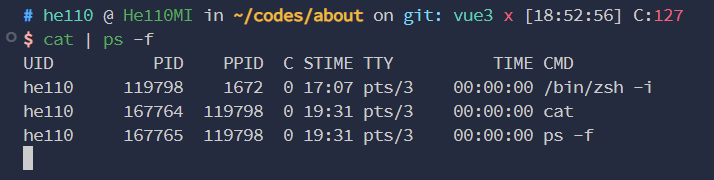
Because child processes are created for execution, even builtin commands cannot affect the current shell.
Redirection
A process opens three file descriptors by default: standard input, standard output, and standard error.
<: input redirection.${command} < ${file}feeds the content offileas the input ofcommand>: output redirection.${command} > ${file}writes the output ofcommandintofile(overwriting the source file)>>: output redirection.${command} >> ${file}writes the output ofcommandintofile(appending to the end of the file)2>: error redirection.${command} 2> ${file}writes the error messages ofcommandintofile(overwriting the source file)2>>: error redirection.${command} 2>> ${file}writes the error messages ofcommandintofile(appending to the end of the file)&>: output redirection.${command} &> ${file}writes all output ofcommandintofile(overwriting the source file)&>>: output redirection.${command} &>> ${file}writes all output ofcommandintofile(appending to the end of the file)
Variables
Naming rules:
- Letters, digits, underscores
- Cannot start with a digit
Variable assignment:
a=123: variable name=variable value; there must be no spaces around=, otherwise it is treated as a commandlet a=10+20: supports computation when defining a variablel=ls: a command can be assigned to a variableletc=$(ls -l /etc): assign a command's output to a variable; backticks can replace$()
A variable's scope is the current shell only; it cannot be used across shells and automatically becomes invalid when a new terminal is opened.
export ${variable name} exports a variable, making it accessible to child processes.
unset ${variable name} deletes a variable.
Environment Variables
env | more: view currently defined environment variablesPATH=$PATH:/xxx: create a variable whose value is the globalPATHvariable +/xxx; the variable needs to beexported to take effect in newly created terminalsecho $?: the exit code of the last command; 0 means no error, or that a condition evaluated totrueecho $$: output the current process PIDecho $0: output the current process nameecho $1: output the 1st argument received by the processecho ${2-default}: output the 2nd argument received by the process; if the argument value is empty, set it todefaultecho $*: output the full argument list as a concatenated stringecho $@: output the full argument list as an arrayecho $#: the number of arguments passed to the shell
The following files are executed automatically, initializing environment variables:
/etc/profile: global environment variables, effective for all users/etc/profile.d/: directory of global environment variables, auto-loaded, effective for all users/etc/bashrc: file of global environment variables, auto-loaded bybash, effective for all users~/.bash_profile: global environment variables, effective only for the current user~/.bashrc: file of global environment variables, auto-loaded bybash, effective only for the current user
When switching users via su - ${user}, the shell auto-load order is:
/etc/profile~/.bash_profile~/.bashrc/etc/bashrc
When switching users via su ${user}, the shell auto-load order is:
~/.bashrc/etc/bashrc
When creating a new terminal via bash, the shell auto-load order is:
~/.bashrc/etc/bashrc
Arrays
list=(1 2 3): define an arrayecho ${list}: output the 1st element of the arrayecho ${list[@]}: output all elements of the arrayecho ${#list[@]}: output the number of array elementsecho ${list[1]}: output the 2nd element of the array
Operators
expr 1 + 1: computes the result of1 + 1; only supports integers; spaces are required around the operatorlet a=1+1: achieves the same computation asexprand supports decimals; no spaces allowed(( a++ )): syntactic sugar forlet; spaces are allowed inside the expression
Quotes
- ': does not expand variables
- ": expands variables
- `: executes a command
Brackets
( ${command} ): create a subshell to execute the command( 1 2 ): create an array(( 1 + 2 )): perform a computation$(ls): execute thelscommand[ 1 -gt 2 ]: conditional test, equivalent totest 1 -gt 2; spaces are required on both sides[[ 1 = 2 ]]: conditional test, whether 1 equals 2; supports symbolic notation like>,<; spaces are required on both sides<: input redirection>: output redirection{0..9}: outputs0-9cp -v /etc/passwd{,.bak}: shorthand, equivalent tocp -v /etc/passwd /etc/passwd.bak
Test Expressions
You can use the test command and [[]] for conditional tests; [[]] extends test and supports symbolic notation such as >, <, etc.
Beyond that, shell tests also support testing files — after all, everything in Linux is a file:
-b ${file}: the file exists and is a block special file-c ${file}: the file exists and is a character special file-d ${file}: the file exists and is a directory-e ${file}: the file exists-f ${file}: the file exists and is a regular file-r ${file}: the file exists and is readable-w ${file}: the file exists and is writable-x ${file}: the file exists and is executable
After test executes, the result can be obtained via $? — there is no need to save the result in a separate variable.
Conditional Statements
# only tests the $? of the test condition; the test command is generally used as the if condition
if [ -x /tmp/test.sh ]
# if then is on its own line, `;` after if can be omitted; otherwise it is required
then
  # executed when the test condition returns 0
fi

# using the echo command as the condition; since echo 1 has no error, $? is 0 here, so 'true' is printed
if echo 1; then
  # multiple commands can be executed here; the block is already wrapped by then to else/fi, no extra handling needed
  echo 'true'
  echo 'true'
  echo 'true'
else
  # executed when the test condition returns non-zero
  echo 'false'
fi

# check whether the user is root
# the quotes around $USER and root are optional — both forms work.
# if the value being tested is uncertain, adding them is recommended to avoid strange problems
if [[ $USER = root ]]; then
  echo 'root user'
# elif can continue testing when the rule above is not satisfied; elif also needs to be followed by then
elif [[ "$USER" = 'he110' ]]; then
  echo 'He110 user'
else
  echo 'false'
fi
Branch Statements
In shell, case can achieve the same effect as a switch statement in JS. The basic case format:
case "$variable" in
  "value 1" )
    # two ; are needed here
    # the first ; ends the command executed inside the branch
    # the second ; actually ends the branch
    ;;

  # multiple values may match the same branch; just join them with |
  "value 2" | "value 3" )
    ;;

  # wildcard, equivalent to default in switch
  * )
    ;;
esac
Loop Statements
# {start..end} generates an integer array over the [start, end] interval
# this can be replaced with other arrays, such as the argument arrays `$*`, `"$@"`
# during iteration each array element is placed into the item variable
for item in {1..9}
# the do statement defines the loop body
do
  # commands executed inside the loop body
  echo "print $item"
# done marks the end of the loop body definition
done
Batch renaming:
# read a list from a command
for filename in `ls *.mp3`
do
  # execute a command via $() to get the file name
  # rename to xxx.mp4
  mv $filename $(basename $filename .mp3).mp4
done

# another way: iterate files directly
for filename in ./*.mp3
do
  mv $filename $(basename $filename .mp3).mp4
done
C-style iteration (not recommended — shell is not good at computation and is inefficient):
for (( i = 1; i <= 10; i++ ))
do
  echo "print $i"
done
while / until loops:
# while executes when the condition is true
while [ 2 -gt 1 ]
do
  echo 'infinite loop'
done

# a concise way to build an infinite loop, e.g. for printing an interactive menu
while :
do
  echo 'infinite loop'
done

# until executes when the condition is false
until [ 1 -gt 2 ]
do
  echo 'infinite loop'
done
break / continue can control loop exit:
for num in {1..9}
do
  if [ $num -eq 5 ]; then
    # skip this iteration
    continue
  elif [ $num -eq 8 ]; then
    # end the loop
    break
  else
    echo $num
  fi
done
N ways to iterate over arguments:
# iterate with a for loop
for pos in $*
do
  # it's best to add "" here to ensure string comparison, avoiding problems caused by some argument types
  if [ "$pos" = 'help' ]; then
    echo "$pos"
  fi
done

# while + shift to left-shift arguments
# keep looping while the argument count > 1
while [ $# -ge 1 ]
do
  if [ "$1" = 'help' ]; then
    echo "$1"
  fi
  # dequeue an argument
  # shift can be followed by an integer indicating how many arguments to dequeue at once
  # suitable for cases like -a xxx -b xxx
  shift
done
Functions
The basic structure:
# define a function; the function keyword can be omitted
function funcName() {
  # a is created when the function is called
  # and automatically destroyed when the call ends
  # local variables avoid polluting the outer shell environment
  local a=2
  echo $a
}

# invoke the function
funcName
The system's built-in function library is located at /etc/init.d/functions, defining some functions built into the operating system.
Script Control
Script control prevents users from occupying resources with infinite loops — for example, recursively creating child processes, ultimately affecting all users.
ulimit -a shows the usage limits of the current terminal, such as CPU limits, process count limits, lock limits, etc.
Fork Bombs
A fork bomb is malicious code that recursively creates child processes until resources are exhausted, for example:
# defines a func that recursively launches func in the background
# eventually the background is flooded with processes, exhausting resources
func() { func | func& }; func
With shortened naming, it can be even shorter, for example:
.(){.|.&};.
Such programs are usually discovered through resource monitoring, and handled by adjusting priority with renice or terminating directly with kill -9.
Signals
Signals are widely used for inter-process communication and are one of Linux's low-level communication mechanisms.
killsends a signal to the specified process; signal 15 is sent by default.ctrl csends signal 2.kill -9forcibly terminates; it cannot be caught or blocked.
Example of a process catching signals:
# trap <action after catching> <signal code to catch>
trap "echo signal" 15

# ctrl + c can also be caught and changed to not terminate, useful for backup scripts and other background processes
trap "echo 'cannot be sanctioned by ctrl + c'" 2
Scheduled Tasks
Scheduled tasks are divided into one-shot and periodic.
One-shot Scheduled Tasks
A one-shot scheduled task runs only once. Create it with at ${date}; after typing the script, press ctrl + d to finish.
Use atq to query all one-shot scheduled tasks.
Since the shell environment is unpredictable when a scheduled task executes, a writing style that does not depend on the environment is recommended — e.g. using absolute paths.
Scheduled tasks do not depend on a terminal when executing, so there is no standard output; getting output requires > redirection.
Periodic Scheduled Tasks
Periodic scheduled tasks run at intervals. Linux provides cron for scheduled tasks, with a minimum unit of 1 minute; for second-level or millisecond-level timers, third-party packages are needed.
crontab -e: create periodic scheduled taskscrontab -l: list all periodic scheduled tasks
Here is a script configured to automatically clean caches:
# minute   hour   day   month   weekday   command to execute
# * matches any time
# */5 means run every five minutes
# to specify a time, just write the number
# to specify a time range, use 1-5
# `/usr/bin/sync`: persists in-memory caches (if needed), avoiding data loss when clearing caches
# `echo 1 > /proc/sys/vm/drop_caches`: clears in-memory caches
*/5 * * * * /usr/bin/sync; echo 1 > /proc/sys/vm/drop_caches

# run the backup task at 3:30 AM every Monday
30 3 * * 1 /root/backup.sh
Delayed Scheduled Tasks
The anacron mechanism, i.e. delayed scheduled tasks: when a scheduled task's execution time arrives but the system is unavailable (e.g. powered off), it can be executed immediately once the system becomes available.
anacron checks the timestamp files in the /var/spool/anacron/ directory to determine whether a task was executed within its scheduled period. If a task was missed due to system shutdown, it is automatically made up after the next boot.
Delayed scheduled tasks can be created by editing /etc/anacrontab; the built-in delayed tasks are as follows:
# global parameters
RANDOM_DELAY=45           # maximum random delay (minutes)
START_HOURS_RANGE=3-22    # allowed execution window (hour range)

# task definition format
# period   base delay   unique job identifier   actual task or script command to execute
period_in_days delay_in_minutes job_identifier command
1       5       cron.daily      nice run-parts /etc/cron.daily
7       25      cron.weekly     nice run-parts /etc/cron.weekly
@monthly 45     cron.monthly    nice run-parts /etc/cron.monthly
Each task can set a base delay and a random delay range.
Locks
flock -xn "/tmp/task.lock" -c "/root/task.sh"flock: creates a lock file for the specified task; as long as the lock file exists, running the task with the same lock file again is restricted.-x: exclusive lock. Once locked, no other task can run again.-s: shared lock. Allows multiple processes to hold the lock together, but read-only — no writing. If an exclusive lock is already held, even a shared lock cannot read.-n: non-blocking mode. If locked, exit immediately instead of waiting for the lock to be released.-w: maximum seconds to wait in blocking mode."/tmp/task.lock": where the lock file is stored-c "/root/task.sh": configure the task/command to execute
Search
Regular Expressions
Basically the same as regular expressions in JS.
Content Search
grep searches file contents; the basic command format is grep ${keyword} ${content or file name to search}. For example: grep html ./index.html.
${keyword} can be a regular expression, e.g. grep "<ht.*" ./index.html.
When using regular expressions, it's best to wrap the expression in " to avoid shell parsing some metacharacters as other shell keywords.
File Search
find searches for files, e.g. find ${file name to find}. This searches the current directory for the specified file name; the name must match exactly, shell wildcards are supported, regular expressions are not.
A more common basic format is find ${directory to search} ${search conditions}. For example:
find /var/log -name nginx: finds any file under/var/logwhose name containsnginx.find /var/log -regex .*nginx.*: finds any file under/var/logwhose name containsnginx, using regex matching.find /var/log -type f -regex .*nginx.*: finds regular files under/var/logwhose name containsnginx, using regex matching.find /var/log -atime 8:atimecorresponds to when the file was accessed; this finds files accessed 8×24 hours ago (ncounts in 24-hour units). Usestat ${file}to viewatime.find /var/log -ctime 8:ctimecorresponds to the inode update time, e.g. file creation, data block updates, permission changes. Usestat ${file}to viewctime.find /var/log -mtime 8:mtimeupdates when content is modified; this finds files whose content was modified 8×24 hours ago (ncounts in 24-hour units). Usestat ${file}to viewmtime.find /var/log -user root: find files owned by the root user.find /var/log -uid 0: find files owned by the root user.find *log* -exec ${command}: find all files containing log and execute${command}on them, e.g.find *log* -exec rm -v {} \;{}: inside${command},{}references each file found\;: marks the end of the value passed to-exec; must be included
Text Operations
cut splits files or content and returns the corresponding chunks as needed.
A common usage: cut -d ${separator} -f 1 ${file}. This command splits the given content by ${separator} and takes its 1st part.
When a file is passed in, each line of the file is split by line breaks.
For example: cut -d ":" -f 7 /etc/passwd queries the terminals of all users.
sort sorts content; for example, cut -d ":" -f 7 /etc/passwd | sort sorts all terminals; sort -r sorts in reverse.
uniq -c counts text, merging adjacent identical lines and counting occurrences.
So to count the terminals used by all users and sort by usage count: cut -d ":" -f 7 /etc/passwd | sort | uniq -c | sort -r.
First split all terminals and sort them so identical terminals are adjacent, then merge terminal names and count, and finally output in reverse order so the highest counts come first.
Line Text Editors
vimis a full-text editor, mainly for editing files; generally interactive.sedandawkare line text editors, processing text line by line; generally non-interactive.
sed
sed is generally used for text replacement, e.g. sed '${address range}s/${search text}/${replacement text}/' ${file1} [ ${file2} ]. The address range and search text can be regular expressions; the address range filters the text to be matched, and can specify line numbers or lines satisfying a regex match.
The basic working mode of sed:
- Read the file into memory (the pattern space) line by line
- Operate on the line with each
sedscript - Output the line after processing
Text Replacement
Multiple replacements can be combined with -e, e.g. sed -e 's/{old1}/${new1}/' -e 's/{old2}/${new2}/' ${file}.
To write replacements back into the file, use -i, e.g. sed -i 's/{old1}/${new1}/' ${file}.
To use extended regular expressions, use -r, e.g. sed -r 's/{extended regex}/${new1}/' ${file}. It's recommended to always enable -r, since features like capture groups are extended features.
# create a test file with one line containing 'a a a'
echo a a a > testFile

# outputs `aa a a`; replacement happens only once per line
sed 's/a/aa/' testFile

# outputs `aa aa aa`; replacement happens once per line, but each time replaces all matches
sed 's/a/aa/g' testFile

# -n suppresses sed's default output behavior
# p prints the matched lines after replacement
# this statement only outputs lines where replacement succeeded
sed -n 's/a/aa/p' testFile

# `w ${file}` writes the successfully replaced lines to a new file
sed -n 's/a/aa/w wFile' testFile

# when replacing /, the original delimiter can be swapped for another character, similar to JS regex
sed 's!/!aa!' testFile

# outputs `bb a a`; -e parameters execute in order, the second -e receives the aa returned by the first -e
sed -e 's/a/aa/' -e 's/aa/bb/' testFile

# outputs `bb a a`; equivalent to the previous command, shorthand form
sed 's/a/aa/;s/aa/bb/' testFile

# no output; writes `bb a a` directly into the corresponding lines of the source file
sed -i 's/a/aa/;s/aa/bb/' testFile

# save as a new file with content `bb bb a`
sed 's/a/aa/;s/aa/bb/' > otherTestFile

# delete the first three characters, outputting `a a`
sed 's/...//' testFile
# outputs 'bbbb a a'
sed -r 's/(bb)/\1\1/' testFile

# save the replacement pattern to a file
echo 's/...//' > sedscript
# load the replacement pattern from a file
sed -f sedscript filename
Address Ranges
Example usage of address ranges:
# create a multi-line file
echo 1 2 3 > testFile
echo a b c >> testFile

# match 'a' on line 1 and replace with 'b'
# no replacement happens here, because line 1 has no 'a'
sed '1s/a/b/' testFile

# match 'a' on lines 1 to 2 and replace with 'b'
# replacement happens here, because line 2 has 'a'
sed '1,2s/a/b/' testFile

# match 'a' from line 1 to the last line and replace with 'b'
# replacement happens here, because line 2 has 'a'
sed '1,$s/a/b/' testFile

# match lines containing \w, i.e. letters, and perform replacement
sed '/\w/s/a/b/' testFile

# match lines containing \w, i.e. letters, and perform multiple replacements
sed '/\w/{s/a/b/;s/b/aa/}' testFile
Other Features
Besides replacement, sed supports other capabilities:
- Deleting lines:
sed '/a/d' testFile: use the address range to match lines containing'a', delete them, and ignore any commands that followsed '/a/d;s/a/b/' testFile: use the address range to match lines containing'a'and delete them; the subsequent replacement command is ignored and not executed
- Inserting lines:
sed '/a/i xxx' testFile: use the address range to match lines containing'a'and insert'xxx'on the line abovesed '/a/a xxx' testFile: use the address range to match lines containing'a'and insert'xxx'on the line below
- Changing matched lines:
sed '/a/c xxx' testFile: use the address range to match lines containing'a'and change the line to'xxx'
- Reading and writing files:
sed '/a/r templateFile' testFile: use the address range to match lines containing'a'and change the line's content to the content oftemplateFilesed -n 's/a/aa/w wFile' testFile: write the replaced file into the specified file; can be used to merge multiple files
- Printing:
sed '/a/=' testFile: use the address range to match lines containing'a'and insert the line number on the line above; usually combined with-nsed '/a/p' testFile: use the address range to match lines containing'a'and print the line; usually combined with-n
- Early exit:
sed '10q' testFile: print only the first ten lines, then exit immediately — better performance
- Multi-line matching:
sed 'N;s/\n//' testFile: read the next line in as well, then replace the newline with an empty stringP: printD: delete
Multi-line Matching Example
Multi-line matching example:
# create a multi-line text with two occurrences of hello bash split across 3 lines
cat > testFile << EOF
hell
o bash hel
lo bash
EOF

# 1. read in lines 1-2
# 2. delete \n
# 3. match `\s?hello bash` and replace with `hello zsh`
# 4. print the replacement result
# 5. delete the printed content
# 6. read in line 3, merge with the remaining string, and re-execute step 2
# final output:
# hello zsh
# hello zsh
sed -r 'N;s/\n//;s/\s?hello bash/hello zsh\n/;P;D' testFile
Hold Space
The hold space keeps text being processed for later use, without needing P;D all the time.
The hold space has one blank line by default, i.e. \n.
handHstore the pattern space content into the hold space; lowercase is overwrite mode, uppercase is append modegandGretrieve the hold space content into the pattern space; lowercase is overwrite mode, uppercase is append modexexchanges the contents of the pattern space and hold space
# requirement: output the first 5 lines of /etc/passwd in reverse order

# the command can be written like this; tac can replace sort -r
head -5 /etc/passwd | cat -n | sort -r

# the sed version of the command is as follows
# since sed reads only one line at a time and previous lines are discarded, we need to use exchange mode: before each read, fetch previously read content from the hold space.
# processing logic:
# 1. use `1h` to put the first line into the hold space, overwriting the original blank line
# 2. use `1!G` so that for every line except the first, after the pattern space reads a new line, the historical value is fetched from the hold space and appended to the pattern space — i.e. reversed order
# 3. use `$!x` so that except on the last line, after each read the pattern space and hold space contents are exchanged
# 4. use `$p` so that only the last line is printed
head -5 /etc/passwd | cat -n | sed -n '1h;1!G;$!x;$p'

# another approach is append mode: append content into the hold space each time without exchanging
# processing logic:
# 1. use `1!G` so that for every line except the first (the hold space has a blank line at this point), after reading a new line, the historical value is fetched from the hold space and appended to the pattern space — i.e. reversed order
# 2. use `h` to save the result into the hold space
# 3. use `$p` so that only the last line is printed
head -5 /etc/passwd | cat -n | sed -n '1!G;h;$p'
awk
awk is generally used to compute statistics over text content and output them in a format; it usually requires the text to have some regularity. If the text is irregular, process it with sed first. For example, awk -F ':' '{print $NF}' /etc/passwd lists all terminals defined in /etc/passwd.
Terminology
Common terms in awk:
- Record: each line is a record
- Field: content separated by delimiters. The default delimiters are spaces and tabs. Use
-Fto specify the field separator:awk -F '${new separator, regex supported}' - Main input loop: the content inside
{ }; its code runs for each record - Begin statement: the content inside
BEGIN { }; its code runs once before the main loop starts; case-sensitive - End statement: the content inside
END { }; its code runs once after the main loop finishes; case-sensitive
# output the installed kernel versions
# filter lines with /^menu/, passing only lines starting with menu to awk
awk -F "'" '/^menu/{ print $2 }' /boot/grub2/grub.cfg

# output the installed kernel versions with sequence numbers
# x is a variable, initialized to 0 if undefined
# x++ increments on each loop
awk -F "'" '/^menu/{ print x++,$2 }' /boot/grub2/grub.cfg
Expressions
- Assignment operators:
var1 = 'name'var2 = 'hello' 'world'— automatically concatenates multiple strings into'helloworld'var3 = $1— the first field after splitting by the separatornum++num--num += 1num -= 1num *= 1num /= 1num %= 1num ^= 1
- Arithmetic operators:
+-*/%^
- System variables:
awkis effectively a programming language with its own system variables, likeprocessinNodeJSFS: input field separator. Records are split according toFSon input.awk 'BEGIN{FS=":"}{print $NF}' /etc/passwd: list all terminals defined in/etc/passwd
OFS: output field separator. Fields are joined according toOFSon output.awk 'BEGIN{FS=":";OFS="---"}{print $1,$NF}' /etc/passwd: list all users and terminals defined in/etc/passwd, joined with---
RS: record separator, newline by defaultNR: line number. Keeps accumulating across multiple files.awk '{print NR,$0}' /etc/passwd /etc/passwd
FNR: line number. Resets to1at the first line of each new file.awk '{print FNR,$0}' /etc/passwd /etc/passwd
NF: number of fields. Directly outputs the field count; the last field is usually taken via$NF.awk 'BEGIN{FS=":"}{print $NF,NF}' /etc/passwd: list all terminals defined in/etc/passwd, followed by the field count, i.e.7
- Relational operators
><<=>===!=~: matches a regular expression!~: does not match a regular expression
- Boolean operators:
&&||!
Conditionals and Loops
Conditionals and loops in awk are exactly the same style as in JS:
ifwhiledo-whilefor
Arrays
awk arrays are similar to JS — array indices can be strings, and there is no concept of array methods.
# initialize the file
echo user1 1 1 1 > test.txt
echo user2 2 2 2 >> test.txt

# iterate the file lines, outputting the sum of numbers per line, i.e.:
# user1 3
# user2 6
awk '{ sum = 0; for (col = 2; col <= NF; col++) { sum += $col; } list[$1] = sum } END { for (user in list) { print user, list[user] } }' test.txt

# awk can also load code blocks with -f, and can read awk's command-line arguments
# ARGC is the argument count
# ARGV is the argument value array
cat > args.awk << EOF
BEGIN {
  for (x = 0; x < ARGC; x++) {
    print x, ARGV[x]
  }
}
EOF

# the output is:
# 0 awk
# 1 111
# 2 222
# 3 333
awk -f args.awk 111 222 333
Functions
awk functions fall into 3 categories:
- Arithmetic functions: for handling numbers. See
man awkfor all supported functions.sin(): sinecos(): cosineint(): truncate to integerrand(): pseudo-random number between 0-1; the same value every timesrand(): seeds the random number generator (with the current time by default), sorand()produces a different sequence on each run
- String functions: for handling strings. See
man awkfor all supported functions.sub(old, new, str): replace the first match;oldsupports a string or regular expressiongsub(old, new, str): global replacement;oldsupports a string or regular expressionindex(str, subStr): find the position of a substring within a stringlength(str): return the string lengthmatch(str, regexp, arr): regex match;arris optional — an array storing the match groups; must be passed if capture groups are neededsplit(str, arr, sep): splitstrbysep, storing the result intoarrsubstr(str, pos, len): extract a substring. Start extracting atpos, takinglencharacters;posstarts from1
- User-defined functions: custom processing. Defined the same way as in
JS, but must be defined outsideBEGIN{},{}, andEND{}.
Firewall
Classification
By runtime environment:
- Software firewall: mainly handles packet filtering, address translation, etc.
- Hardware firewall: mainly targets DDoS and other network attack scenarios, and can also handle some packet filtering
By network layer served:
- Packet-filtering firewall: controls packet filtering, address translation, etc. at the transport layer
- Application-layer firewall: the application layer can obtain more information, e.g. filtering by logged-in user
CentOS 6 uses iptables by default (backed by netfilter). CentOS 7 uses firewallD by default (converted into iptables processing, simplifying configuration).
iptables
Terminology
- Rule tables: rules configured by operation type, such as the filter table, NAT table, mangle table, raw table
- filter table: packet filtering
- nat table: address translation
- mangle table: modify packets
- raw table: iptables enables connection tracking for packets by default; this table configures which packets are not tracked
- security table: used for mandatory access control (MAC) network rules, such as those enabled by the SECMARK and CONNSECMARK targets; mainly used by SELinux, not commonly used
- Rule chains: rules configured along the network transmission path, such as
INPUT,OUTPUT,FORWARD,PREROUTING,POSTROUTING. More specifically, rule chains aggregate rules by whichnetfilterhookthey listen to — e.g. all listening onINPUT— so user-defined rule chains are also supported.
Basic Syntax
The common iptables syntax is iptables -t ${rule table} ${command} ${rule chain} ${rule}.
-t ${rule table}: which rule table to operate on; defaults to the filter table if not specified${command}: choose the command to execute, e.g. view, add, delete, or modify rules-A/--append: add a rule, appended to the end of the rule table-C/--check: check whether a rule matches-D/--delete: delete a rule/rule chain-I/--insert: insert one or more rules at a specified position in a rule chain-R/--replace: replace the specified rule-P/--policy: configure the default policy of a rule chain-L/--list: list rules; if no rule chain is specified, all rules in the table are listed-N/--new-chain: create a user-defined rule chain-X/--delete-chain: delete a user-defined rule chain-E/--rename-chain: rename a user-defined rule chain-n: do not reverse-resolve hostnames from IPs; show IPs directly-v: show detailed information
${rule chain}: at which point of the transmission path to operate${rule}: what specific action to take, e.g. allow or deny-4/--ipv4: the rule applies to IPv4-6/--ipv6: the rule applies to IPv6-p/--protocol: the rule applies to the specified protocol--dport: the rule applies to the specified port-s/--source: the rule applies to the specified source address, supportingip[/mask]-d/--destination: the rule applies to the specified destination address, supportingip[/mask]-i/--in-interface: the rule applies to the specified NIC receiving packets-o/--out-interface: the rule applies to the specified NIC sending packets-m/--match: load an extension module for complex matching; rarely used-j/--jump: specify the final action after a packet matches the rule, or jump to a user-defined chain to continue matching rules, returning to this chain to continue executing subsequent rules after matching completes.-j ACCEPT: allow the packet through-j DROP: drop the packet. No response is sent; the client waits until timeout. This also avoids exposing your own existence, e.g. rejecting some IP or port probes.-j REJECT: reject the packet. An error response is returned.-j my_chain: jump to a user-defined chain
-g/--goto: only used to jump to a user-defined chain, and after jumping, it does not return to the original chain.
Common Commands
iptables -vnL: view all filter table rules, without reverse-resolving hostnames, with detailed informationiptables -t nat -L: view all nat table rulesiptables -t filter -A INPUT -s 1.1.1.1 -j ACCEPT-t filter: add to the filter table, i.e. configure packet filtering-A INPUT: configure the INPUT chain, i.e. trigger the rule when receiving data-s 1.1.1.1: specify the source address; the rule triggers when the source address is 1.1.1.1-j ACCEPT: set the rule to allow through
iptables -P INPUT DROP: configure theINPUTchain to block all access by default; only rules configured withACCEPTcan pass
When matching, iptables starts from the head of the chain. Once a -j ACCEPT is matched, it returns immediately — because -j specifies the final action — so the subsequent DROP is ignored.
iptables -t filter -A INPUT -s 1.1.1.1 -j ACCEPT
iptables -t filter -A INPUT -s 1.1.1.1 -j DROP
The NAT Table
iptables -t nat -A PREROUTING -i eth0 -d 1.2.3.4 -p tcp --dport 80 -j DNAT --to-destination 192.168.0.111: destination address mapping. Requests sent to the external network can be mapped to an internal gateway for data collection, forwarding, etc.-t nat: configure the nat table-A PREROUTING: register a forwarding rule before route processing-i eth0: configure the NIC to listen on-d 1.2.3.4: configure listening for packets whose destination IP is 1.2.3.4-p tcp: configure listening for TCP packets--dport 80: configure listening for packets sent to port 80-j DNAT: perform address translation--to-destination 192.168.0.111: the destination IP after translation
iptables -t nat -A POSTROUTING -i eth1 -s 192.168.0.111/24 -p tcp --dport 80 -j SNAT --to-source 1.2.3.4: source address mapping. Requests forwarded from the internal network can be masqueraded as sent from the external network.-s 192.168.0.111/24: specify the source address field of the packet-j SNAT: perform source address translation--to-source 1.2.3.4: the source address after translation
Persisting Rules
Rules added via the iptables command line are only added in memory and are not persisted. To persist them, use service iptables save to save the current configuration to /etc/sysconfig/iptables. On CentOS 7, iptables-services must be installed manually.
service iptables save calls iptables-save to obtain the in-memory rule configuration, saves it to a temporary file, then renames the temporary file to /etc/sysconfig/iptables, overwriting the original configuration.
firewallD
firewallD introduces the concept of zones, aggregating rule chain configuration items such as network segments, accessible services, network interfaces, etc.
When managing, you work in units of zones — no need to care which rule table or rule chain is being handled; just manage different zones.
ssh
sshd
ssh is a secure remote command-line service.
In the early days, telnet was used for remote command lines, but because telnet transmits in plaintext and could leak administrator passwords, it was replaced by ssh.
The main configuration file is /etc/ssh/sshd_config; settings to pay attention to:
Port 22: the port sshd listens on, 22 by default; some servers change the default port for securityPermitRootLogin yes: whether to allow the root user to log in via ssh; allowed by defaultAuthorizedKeysFile: where the key file for sshd login is stored
Configuration changes take effect only after restarting sshd, e.g. systemctl restart sshd.service.
scp
Based on the ssh protocol, file transfer functionality was extended — that is scp. During scp transfer, commands and files use the same link, which differs from FTP.
scp ${localFile} ${user}@${server}:${path}: upload a file. Requires interactively entering the password, or using a built-in keyscp -i ${keyPath} ${localFile} ${user}@${server}:${path}: upload a file with the specified login keyscp ${user}@${server}:${path} ${localFile}: download a file. Requires interactively entering the password, or using a built-in keyscp -r ${localFile} ${user}@${server}:${path}: upload a directory. Requires interactively entering the password, or using a built-in key
ftp
Introduction
FTP needs to transmit commands and files over different links, occupying at least two ports:
- Command transmission: generally uses ports 20/21, e.g. establishing the connection, negotiating the file transfer link port, etc.
- File transmission: generally uses port numbers > 1024; the port number is passed to the client via command transmission.
For command transmission, there are active mode and passive mode:
- Active mode: after the FTP connection is established, the server actively sends messages to the client to establish the file transfer link
- Passive mode: after the FTP connection is established, the server passively responds to client messages to establish the file transfer link
You can install ftp functionality with yum install vsftpd ftp, and enable the vsftpd service with systemctl start vsftpd.service.
vsftpd generally acts as the server, and ftp is the client.
After installation, you can connect via ftp ${server}, e.g. ftp localhost.
By default, you can log in with the ftp account and an empty password. Local accounts are also supported, with the user's password.
Once connected to ftp, you can execute commands with !${command}, e.g. !ls.
put ${file} uploads the local file with the same name to the server; the file name stays unchanged.
get ${file} downloads the file with the same name from the server to local; the file name stays unchanged.
vsftpd
Common configuration files:
/etc/vsftpd/vsftpd.conf: the main configuration fileanonymous_enable=YES: whether to allow anonymous login, i.e. theftpuser;YES/NOmust be uppercaselocal_enable=YES: whether to allow login with local accounts.write_enable=YES: whether writing files, i.e. writing to the server, is allowed.connect_from_port_20=YES: whether to enable active transfer mode; active transfer generally uses port 20.userlist_enable=NO: whether to enable the user blacklist/whitelist feature.userlist_deny=YES: when YES, the userlist is a blacklist; when NO, a whitelist.
/etc/vsftpd/ftpusers: records users forbidden from logging in — generally high-privilege users, to avoid file leakage./etc/vsftpd/user_list: user blacklist/whitelist configuration
Virtual Users
Logging into ftp with local users easily leaks information, and the verification phase during login is slow, so ftp often enables virtual users — logging in with ftp-dedicated accounts.
guest_enable=YES: enable the virtual user featureguest_username=vuser: configure the local user corresponding to virtual users; all ftp accounts operate using this account; must not be configured as the root useruser_config_dir=/etc/vsftpd/vuserconfig: per-virtual-user permission control. This configuration changes where configuration files are stored, using the username as the configuration file name.allow_writeable_chroot=YES: allow virtual users to upload filespam_service_name=vsftpd.vuser: change the authentication module name to use a custom authentication module
Steps to configure virtual users:
# initialize ftp virtual accounts
# odd lines are usernames, even lines are passwords
cat > vuser.temp << EOF
user1
password1
user2
password2
EOF

# convert to the ftp database file
db_load -T -t hash -f ./vuser.temp /etc/vsftpd/vuser.db
# the permission needs to be changed to 600
chmod 600 /etc/vsftpd/vuser.db

# modify the authentication module to support login with FTP virtual accounts
# two records need to be configured: permission verification and login verification
# since previous users are not retained, this authentication method only allows virtual account login; local accounts cannot log in
# to stay compatible with local users, modify the original /etc/pam.d/vsftpd instead
cat > /etc/pam.d/vsftpd.vuser << EOF
auth sufficient /lib64/security/pam_userdb.so db=/etc/vsftpd/vuser
account sufficient /lib64/security/pam_userdb.so db=/etc/vsftpd/vuser
EOF

# initialize the per-user permission configuration directory
mkdir -p /etc/vsftpd/vuserconfig

# configure permissions for user1
# local_root: the directory opened after login
# write_enable: whether writable
# anon_umask: file permission mask; files uploaded by the user are set to `0777 - anon_umask` permissions
# anon_world_readable_only: whether read-only
# anon_upload_enable: whether upload is allowed
# anon_mkdir_write_enable: whether creating directories is allowed
# anon_other_write_enable: extended write permission; whether delete, rename, overwrite, etc. are allowed
# download_enable: whether download is allowed
cat > /etc/vsftpd/vuserconfig/user1 << EOF
local_root=/data/ftp
write_enable=YES
anon_umask=022
anon_world_readable_only=NO
anon_upload_enable=YES
anon_mkdir_write_enable=YES
anon_other_write_enable=YES
download_enable=YES
EOF
User Mode and Kernel Mode
User mode is the activity space of upper-layer applications. Application execution must rely on resources provided by the kernel, including CPU resources, storage resources, I/O resources, etc. To let upper-layer applications access these resources, the kernel must provide access interfaces for them — namely system calls.
In simple terms:
- Kernel mode: the state of processes running in kernel space
- User mode: the state of processes running in user space
The reason for distinguishing the two states: some CPU instructions carry significant security risks and can only be used in the kernel — i.e. they run in kernel space, in kernel mode; some low-risk instructions can be exposed directly to users — i.e. they run in user space, in kernel mode.