Browser Mechanisms
A summary of browser behaviors, mainly focused on Chrome
Updated
Preloading
preload: declares resources the current page definitely needs, forcing the browser to load them asynchronously right away at high priority- Loading stops as soon as the browser is closed
- Priority is determined by
asandtype:stylegets the highest priority (Highest), whilescriptmay be Medium or Low
prefetch: hints the browser to preload resources that may be used on a future page (such as the next page's scripts) when idle- Loading continues even if the browser is closed
- Lowest priority (Lowest)
modulepreload: basically the same aspreload, but after loading it also parses the JS and downloads its dependent resources (such as other JS). Vite uses this feature to load all dependency packages in one preload pass, avoiding network round-trips that would degrade parallel loading into serial loading
script
By default, scripts load and parse synchronously, blocking UI rendering, interaction, etc.
You can modify the default script behavior by adding attributes to the script tag:
async: fetches asynchronously on a separate thread; as soon as the response arrives, HTML parsing is blocked and JS parsing beginsdefer: fetches asynchronously on a separate thread; the JS is parsed only after HTML parsing completestype="module": loads asynchronously by default; after loading, it is parsed and executed as an esm module and can recognizeimport,export, and other statements.importlooks up the URL for a package in theimportmap, supports specifying different versions of the same package name, and supports specifying multiple URLs for the same version of the same packagetype="nomodule": a fallback script for whentype="module"scripts are not supported

Browser Storage
cookie
Generally stores information for communicating with the server, such as the user ID.
For security, it is usually only set by the server — that is, set as HttpOnly
When cookies need to cross sites — for example, when an iframe page is embedded and cookies must be passed cross-origin — the cookie can be set to SameSite
SessionStorage, LocalStorage, IndexedDB
| Storage type | Lifetime | Value type | Sync / Async | Capacity | Use cases |
|---|---|---|---|---|---|
| SessionStorage | During the session (cleared when the tab closes) | String | Sync | 5-10MB |
|
| LocalStorage | Permanent (unless manually cleared) | String | Sync | 5-10MB |
|
| IndexedDB | Permanent (unless manually cleared) | Any type | Async | 50MB+ |
|
Loading Events
DOMContentLoaded: fires when the HTML document has been completely parsed and all deferred scripts (<script defer src="…">and<script type="module">) have been downloaded and executed. It does not wait for stylesheets, images, subframes, or async scripts and other content to finish loading.load: fires when the HTML document has been completely parsed, all deferred scripts (<script defer src="…">and<script type="module">) have been downloaded and executed, and resources such as stylesheets, images, and subframes have finished loading. It does not guarantee waiting for async scripts to finish loading.
Resource Loading Priority
Default Priorities of Various Resources
| Resource type | highest |
high |
medium |
low |
lowest |
|---|---|---|---|---|---|
| Main resource | Main resource | ||||
CSS |
Early CSS |
Late CSS |
CSS resources whose media queries don't match |
||
JavaScript |
Early Javascript / non-preload JavaScript |
Late JavaScript |
async JavaScript |
||
| Fonts | Normal fonts | preload fonts |
|||
| Imported resources | Resources imported with import, e.g. ESM + importmap |
||||
| Images | Images in the viewport are automatically boosted to high |
The first 5 large images (images over 10000px) are automatically boosted to medium |
Images land here by default | ||
| Media resources | Video, audio | ||||
| Preloading | prefetch |
||||
XSL (XML stylesheets) |
XSL |
||||
XHR |
Sync XHR |
Async XHR / fetch |
Some terminology explained:
Early: the request was made before any non-preloadimages were requestedLate: the request was made after any non-preloadimages were requested
Manually Specifying Resource Priority
Adding the fetchpriority attribute to an HTML tag can forcibly specify a resource's priority, but it can only be set to high / low / auto
high: high priority — queued for loading among the high-priority resourceslow: low priority — queued for loading among the low-priority resourcesauto: the default value
fetch can use priority instead of the tag's fetchpriority attribute
<!-- We don't want this image to load too early, although it is in the viewport and would default to high priority -->
<img src="/images/in_viewport_but_not_important.jpg" fetchpriority="low" alt="I'm an unimportant image!" />

<!-- We want preloading, but not with too high a priority -->
<link rel="preload" href="/js/script.js" as="script" fetchpriority="low" />

<script>
  // An unimportant request, explicitly set to low priority
  fetch('https://me.he110.site/', { priority: 'low' }).then((data) => {
    // Trigger a low priority fetch
  })
</script>
References
Page Lifecycle
References:
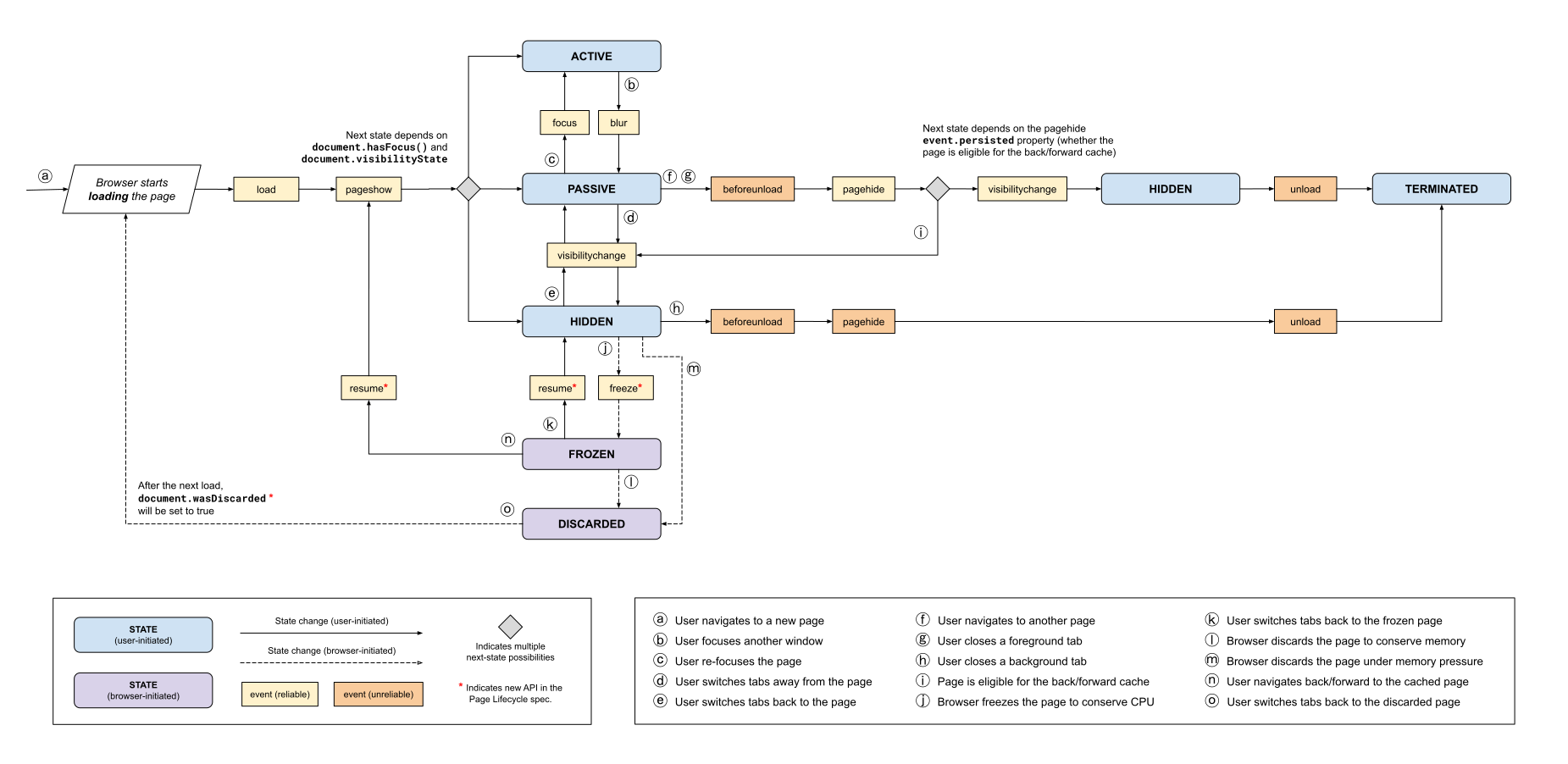
---
title: Chrome Page Lifecycle, Events, and State Cycle Diagram
---
graph TB
  Start[User visits a new page]
  A[Browser loads resources]

  %% Branch decisions
  JPageState@{ shape: diamond, label: "document.visibilityState" }
  JPersisted@{ shape: diamond, label: "event.persisted" }

  %% Reliable DOM events
  RELoad[load event]:::ReliableEvent
  REPageShow[pageshow event]:::ReliableEvent
  REPageHide[pagehide event]:::ReliableEvent
  REVisibilityChange[visibilitychange event]:::ReliableEvent
  REVisibilityChangeUncache[visibilitychange event]:::ReliableEvent
  REResume[resume event]:::ReliableEvent
  REResumeCache[resume event]:::ReliableEvent

  %% Unreliable DOM events
  UEBeforeUnload[beforeunload event]:::UnreliableEvent
  UEBeforeUnloadBack[beforeunload event]:::UnreliableEvent
  UEUnloadBack[unload event]:::UnreliableEvent
  UEUnloadUncache[unload event]:::UnreliableEvent
  UEPageHide[pagehide event]

  %% User-triggered states
  USActive[User action triggers the ACTIVE state]:::UserTriggerState
  USPassive[User action triggers the PASSIVE state]:::UserTriggerState
  USHidden[User action triggers the HIDDEN state]:::UserTriggerState
  USHiddenUncache[User action triggers the HIDDEN state]:::UserTriggerState
  USTerminated[User action triggers the TERMINATED state]:::UserTriggerState

  %% Browser-triggered states
  BSFrozen[Browser triggers the FROZEN state]:::BrowserTriggerState
  BSDiscarded[Browser triggers the DISCARDED state]:::BrowserTriggerState

  Start --> A
  A --> RELoad
  RELoad --> REPageShow

  REPageShow -->  JPageState

  JPageState --> USActive
  JPageState --> USPassive
  JPageState --> USHidden

  %% The different states a page may be in
  subgraph TD The different states a page may be in
    USActive -->|User focuses another window| REBlur
    REBlur --> USPassive
    USPassive -->|User refocuses this page| REFocus
    REFocus --> USActive
    USPassive -->|User switches tabs, leaving the current page| REVisibleChange
    REVisibleChange --> USHidden
    USHidden -->|User switches tabs, returning to the current page| REVisibleChange
    REVisibleChange --> USPassive

    USPassive -->|User navigates to a new page<br>User closes the current tab| UEBeforeUnload
    UEBeforeUnload --> REPageHide

    USHidden -."The browser freezes the current page<br>to save CPU".-> REFreeze
    REFreeze -.-> BSFrozen
    BSFrozen -->|User switches tabs to activate the frozen page| REResume
    REResume --> USHidden
    BSFrozen -.-> BSDiscarded
    USHidden -.Too much memory used, page automatically discarded.-> BSDiscarded
  end

  BSDiscarded -.User switches tabs back to the discarded page.-> A
  BSFrozen -->|User navigates back/forward to this page<br>activating the back/forward cache| REResumeCache
  REResumeCache --> REPageShow
  REPageHide --> JPersisted
  JPersisted -->|Page meets the back/forward cache conditions| REVisibilityChange
  JPersisted -->|Cannot be cached| REVisibilityChangeUncache
  REVisibilityChangeUncache --> USHiddenUncache
  USHiddenUncache --> UEUnloadUncache
  UEUnloadUncache --> USTerminated

  USHidden -->|User closes a background tab| UEBeforeUnloadBack
  UEBeforeUnloadBack --> UEPageHide
  UEPageHide --> UEUnloadBack
  UEUnloadBack --> USTerminated

  classDef ReliableEvent fill:#FDF2D0,stroke:#2F3540;
  classDef UnreliableEvent fill:#F2CDA2,stroke:#2F3540;
  classDef UserTriggerState fill:#D3E1F1,stroke:#2F3540;
  classDef BrowserTriggerState fill:#D8D2E7,stroke:#2F3540;
The Browser's Multi-Process Architecture
Threads VS Processes
- Multiple threads can process tasks in parallel, but a thread cannot exist on its own — it is started and managed by a process. A process is a running instance of a program
- If any thread in a process fails, the entire process crashes
- Threads share the data of their process
- When a process is closed, the operating system reclaims the memory it occupied
- The contents of different processes are isolated from each other
The Single-Process Browser Era
A single-process browser is one where all of the browser's functional modules run in the same process — these modules include networking, plugins, the JavaScript runtime, the rendering engine, and pages. In fact, before 2007 all browsers on the market were single-process; having so many functional modules running in one process was a major cause of single-process browsers being unstable, unsmooth, and insecure
Problem 1: Unstable
- Early browsers relied on plugins for powerful features like web video and web games, but plugins were the most failure-prone modules and ran inside the browser process — so one plugin crash could bring down the whole browser
- The rendering engine module was also unstable; complex
JavaScriptcode could easily crash the rendering engine module
Problem 2: Unsmooth
Only one module can execute at a time. If a module's script is an infinite loop, it monopolizes the entire thread while executing, leaving the other modules on that thread no chance to run. Since all pages in the browser run on that thread, none of them get to execute their tasks — causing the whole browser to become unresponsive and janky
Problem 3: Insecure
Plugins can be written in C/C++ and can access any operating system resource. Running a plugin on a page means that plugin can fully operate your computer. If it is a malicious plugin, it can release viruses and steal your account passwords, causing security problems
The Browser's Multi-Process Architecture
See the official architecture diagram published by Chromium
- The browser process. Mainly responsible for UI display, user interaction, and subprocess management, while also providing storage and other functions.
- The renderer process. Its core task is turning HTML, CSS, and JavaScript into a web page the user can interact with. The Blink layout engine and the V8 JavaScript engine both run in this process. By default, Chrome creates a renderer process for each tab. For security, renderer processes run in sandbox mode.
- The GPU process. Chrome actually had no GPU process when it first launched. The GPU was originally used to achieve 3D CSS effects, but later web pages and Chrome's UI both chose to be drawn with the GPU, making the GPU a universal browser requirement.
- The network process. Mainly responsible for loading a page's network resources. It used to run as a module inside the browser process and only recently became a separate process.
- The plugin process. Mainly responsible for running plugins. Since plugins crash easily, they are isolated in plugin processes so that a plugin crash does not affect the browser or pages.
Summary
Why does opening just 1 page create 4 processes? Because opening 1 page requires at least 1 network process, 1 browser process, 1 GPU process, and 1 renderer process — 4 in total; if the opened page runs plugins, add 1 more plugin process
Why Many Sites Load Much Faster the Second Time
Time-consuming network request results are cached, such as:
- DNS resolution (browser cache + operating system cache)
- Resources used by the page (strong cache, negotiated cache)
Browser Caching
The Browser's Resource Loading Flow
- When loading a resource, the browser checks the request headers' expires and cache-control (max-age, no-cache, and other configuration) to determine whether the strong cache is hit. If so, it reads the resource directly from the cache without sending a request to the server.
- If the strong cache is missed, the browser always sends a request to the server and validates via last-modified and etag whether the negotiated cache is hit. If hit, the server responds to the request but does not return the resource's data — the resource is still read from the cache
- If neither is hit, the resource is loaded directly from the server
Strong Caching
Expires
Expires is a Header introduced in HTTP/1.0 that represents a resource's expiration time — an absolute time returned by the server.
Expires is constrained by the local time; if the local time is changed, the cache may be invalidated.
Cache-Control
Cache-Control appeared in HTTP/1.1, has higher priority than Expires, and represents a relative time.
no-store: data is not cached locally; it is always expired on validationno-cache: data is cached locally, but it is always expired when validatedpublic: all hosts along the path are allowed to cache, including the requester (usually the browser) and CDNsprivate: only the requester (usually the browser) may cache; relay nodes (CDNs) are not allowed to cachemax-age: the relative expiration time of the resource — a timestamp in seconds; if the value is not a positive integer, it is equivalent to 0, i.e. expires immediatelys-maxage: effective for non-privatecaches; has higher priority thanmax-age
Negotiated Caching
When a browser's request for a resource misses the strong cache, it sends a request to the server to check whether the negotiated cache is hit. If the negotiated cache hits, the response returns HTTP status 304 and shows a Not Modified string
Negotiated caching is managed by the two header pairs Last-Modified + If-Modified-Since and ETag + If-None-Match
Last-Modified + If-Modified-Since
Last-Modified indicates the local file's last modified date (absolute time). The browser adds If-Modified-Since (the value of the previously returned Last-Modified) to the request header, asking the server whether the resource has been updated since that date; if it has, the new resource is sent back.
However, opening the cached file locally causes Last-Modified to be modified, so HTTP/1.1 introduced ETag
ETag + If-None-Match
ETag is like a fingerprint — any change to the resource changes the ETag, regardless of the last modified time. ETag guarantees that every resource is unique
The If-None-Match header sends the previously returned ETag to the server (typically for unsaved, in-progress content), asking whether the resource's ETag has changed; if it has, the new resource is sent back
ETag has higher priority than Last-Modified
Reasons ETag was introduced
- Some files may change periodically without their content actually changing (only the modification time changes), and we don't want clients to think the file was modified and re-
GETit - Some files are modified very frequently — for example, several times within a second. The granularity
If-Modified-Sincecan check is seconds, so such modifications cannot be detected (or rather,UNIXrecordsMTIMEonly to second precision) - Some servers cannot precisely obtain a file's last modified time
If a
POSTrequest is cached,If-Matchis sent instead ofETag— it can be used to determine whether an edited version is up to date during multi-user collaborative editing
The Relationship Between the Two Caches
The strong cache is the premise; the negotiated cache is the fallback consulted after the strong cache expires, to confirm whether the expired strong cache can still be used
Cache-Related Status Codes
200: the cache is invalid and a new file is returned directly200(from cache): a hint that the old version hit the cache, possibly read from memory or disk200(from memory cache): cache hit — the corresponding cache is already in memory, no disk read needed200(from disk cache): cache hit — but the in-memory cache has expired, so the cache is re-read from disk (which updatesLast-Modified)304(Not Modified): negotiated cache hit — the existing local cache can keep being used
What Happens After the Browser Opens a URL
---
title: Browser URL Response Flowchart
---
graph TD
    subgraph Browser process
        A[User input] --> B[Process input]
        B --> C[Start navigation]
        C --> D{Redirect needed?}
        D -->|Yes| E[Redirect]
        E --> C
        D -->|No| F[Prepare the renderer process]
        F --> G[Confirm the document is committed]
        G --> H[Page load complete]
    end

    subgraph Network process
        C --> I[Issue the URL request]
        I --> J[Read the response headers]
        J --> K{Status code OK?}
        K -->|Yes| L[Read the response body]
        K -->|No| M[Error handling]
        L --> N[Commit the document]
    end

    subgraph Renderer process
        N --> O[Parse the page]
        O --> P[Load sub-resources]
        P --> Q[Build the DOM tree]
        Q --> R[Page rendering complete]
    end

    H --> R
- First, the browser process receives the URL request entered by the user and forwards the URL to the network process
- Then, the actual URL request is issued in the network process
- Once the network process receives the response headers, it parses them and forwards the data to the browser process
- After receiving the response headers from the network process, the browser process sends a "CommitNavigation" message to the renderer process
- After receiving the "commit navigation" message, the renderer process prepares to receive HTML data — by establishing a data pipe directly with the network process
- Finally, the renderer process sends a "commit confirmation" to the browser process, telling it: "I'm ready to receive and parse the page data"
- After receiving the renderer's "document committed" message, the browser process removes the old document and updates the page state in the browser process
User Input
- When the user types a query keyword into the address bar, the address bar determines whether the input is search content or a requested URL
- If it is search content, the address bar uses the browser's default search engine to compose a new
URLwith the search keywords. - If the input matches the
URLrules — for exampleme.he110.site— the address bar adds the protocol according to the rules, composing the completeURLhttps://me.he110.site. - After the user enters keywords and presses Enter, the current page is about to be replaced by a new page. But before this flow continues, the browser gives the current page one chance to run the
beforeunloadevent. Thebeforeunloadevent lets the page perform data cleanup before exiting, and can also ask the user whether they want to leave — for example, the current page might have an unsubmitted form. So the user can cancel the navigation via thebeforeunloadevent, stopping the browser from doing any further work
The URL Request
The browser process sends the URL request to the network process via inter-process communication (IPC). After receiving the URL request, the network process starts the real URL request flow.
- First, the network process checks whether the local cache holds the resource. If a cached resource exists, it is returned directly to the browser process
- If the resource is not found in the cache, the network request flow begins (the first step before requesting is
DNSresolution to obtain the serverIPaddress for the requested domain. If the request protocol isHTTPS, aTLSconnection must also be established) - Use the
IPaddress to establish aTCPconnection with the server. Once the connection is established, the browser builds the request line, request headers, and other information, attaches data related to the domain such asCookies to the request headers, and then sends the constructed request to the server - After receiving the request, the server generates response data based on it and sends it to the network process. Once the network process has received the response line and response headers, it starts parsing the response header contents
- Redirect: after receiving the response headers returned by the server, the network process starts parsing them. If the returned status code is
301or302, the server wants the browser to redirect to anotherURL. The network process reads the redirect address from theLocationfield of the response headers and then issues a newHTTPorHTTPSrequest — everything starts over - Response data type handling: if the value of the
Content-Typefield is judged by the browser to be a download type, the request is handed to the browser's download manager and the navigation flow for thisURLrequest ends there. But if it isHTML, the browser continues the navigation flow.
- Redirect: after receiving the response headers returned by the server, the network process starts parsing them. If the returned status code is
URL Parsing
Check whether the URL is valid and extract its parts
- Protocol
- Domain/IP
- Port
- path
- query
- hash
DNS Resolution
If a Domain is present, DNS resolution is performed; for an IP address this step is skipped
- Look up the browser's internal DNS cache for a cached IP address; use it directly if present
- Request the local DNS; the local DNS checks the operating system's DNS cache for a cached IP address; use it directly if present
- Resolve the domain name
- Query the root name server for the address of the corresponding top-level domain name server
- Query the top-level domain name server for the address of the corresponding authoritative name server
- Cache the resolved result in DNS; for a CNAME resolution (CDNs generally return a CNAME), further queries are needed
Establishing a Session
Establish a session connection according to the protocol in use.
With HTTP/1, HTTP/1.1, HTTP/2, and similar protocols, if there is no persistent connection, a TCP handshake takes place.
With HTTPS, an additional SSL/TLS handshake is required
With HTTP3, only one RTT is needed
For the detailed handshake flow, see the Network Note section
Sending the Request
Package the parsed data into a request in packet format and send it to the server. The request includes:
- Line: the request method, request URL, HTTP protocol version, etc., e.g.
POST /a.php HTTP/1.1 - Header: request headers, generally in
key-valueform, e.g.Host: localhost:8080 - Body: mainly carries the request parameters;
GET,DELETE, andOPTIONgenerally have no such structure. The Header and Body are separated by a blank line
The Response
After processing the request, the server sends back a response containing the following parts:
- Line: the HTTP protocol version, status code, and message, e.g.
HTTP/1.1 200 OK - Header: response headers, generally in
key-valueform, e.g.Content-Type: text/html;charset=UTF-8 - Content: the main content returned to the browser. The Header and Content are separated by a blank line
Preparing the Renderer Process
- By default,
Chromeassigns a renderer process to each page — that is, every newly opened page gets a newly created renderer process, i.e.Process-per-site-instance(allocated per same-site instance) - Multiple pages of the same site (
same-site) run in one renderer process at the same time (a parent-child page relationship is required — e.g. openingB.he110.sitefromA.he110.siteshares the renderer process, while typingB.he110.siteinto a brand-new tab does not)
["Same site" is defined as the root domain (e.g. he110.info) plus the protocol (e.g.
https://orhttp://), and includes all subdomains and different ports under that root domain; for example, all three of the following belong to the same site]
Other supported process models:
Process-per-tab: every tab gets its own renderer process, regardless of whether the site is the sameProcess-per-site: all pages under the same root domain (e.g.he110.site) share one process, whether or not they were opened from the same parent page- Separate processes for cross-origin
iframes: if a page contains a cross-originiframe, the browser assigns the cross-originiframeits own renderer process for security isolation - Resource limits and degradation strategies: on low-end devices or when memory is low,
Chromemay degrade to a shared-process mode (e.g. multiple tabs sharing one process) to save resources
Committing the Document
Committing the document means the browser process submits the HTML data received by the network process to the renderer process. The specific flow is:
- First, after receiving the response headers from the network process, the browser process sends a "commit document" message to the renderer process;
- After receiving the "commit document" message, the renderer process establishes a data-transfer "pipe" with the network process;
- Once the document data transfer is complete, the renderer process returns a "commit confirmation" message to the browser process;
- After receiving the "commit confirmation", the browser process updates the browser UI state — including the security state, the address bar URL, and the back/forward history state — and updates the web page
This also explains why, after typing an address into the browser's address bar, the previous page does not disappear immediately — the page only updates after a moment of loading
The Rendering Phase
Resource Parsing
After the browser receives the resources in the server's response, it first parses them:
- Look at the response headers and handle them according to their directives — for example redirects, storing
cookies, decompressinggzip/br, caching resources, and so on - Look at the
Content-Typevalue in the response headers and parse according to the resource type
The Rendering Process
The page rendering process is as follows:
- Parsing and construction phase
- Parse
HTML: generate theDOMtree; parsing may be blocked when a<script>tag is encountered. Modern browsers preload CSS/JS resources and control script execution order via the async/defer attributes. - Parse
CSS: generate theCSSOMtree, normalizing property values (e.g.em→px,color names→RGB).
- Parse
- Layout phase
- Build the render tree (
Render Tree): merge theDOMandCSSOM, including only visible elements (e.g. ignoringdisplay: nonenodes). - Layout computation (
Layout/Reflow): generate the layout tree (Layout Tree), precisely computing each element's geometric position and size. Modifying geometric properties (such as width, height, positioning) triggers a global or partial reflow.
- Build the render tree (
- Layering and painting phase
- Layering (
Layer Tree): based on stacking contexts,will-change, and other properties, elements are promoted to their own layers (e.g. animated elements usingtransformoropacity). - Generate the paint list: record each layer's paint commands (such as text, borders, shadows), which the main thread submits to the compositor thread.
- Layering (
- Rasterization and compositing phase
- Tiling: the compositor thread divides the layers into tiles, prioritizing tiles near the viewport.
- Rasterization: in the
GPU-accelerated rasterization thread pool, tiles are converted into bitmaps stored inGPUmemory. - Compositing (
Composite): the compositor thread submits the bitmaps to the browser process viaDrawQuadcommands, and theGPUcomposites the final image for display
---
title: Browser Page Rendering Flowchart
---
graph TD
    classDef process fill:#E1F5FE,stroke:#039BE5;
    classDef data fill:#F0F4C3,stroke:#AFB42B;
    classDef merge fill:#FFCCBC,stroke:#BF360C;
    classDef repaint fill:#FFE0B2,stroke:#EF6C00;
    classDef reflow fill:#C8E6C9,stroke:#2E7D32;

    class reflow,reflow_label reflow;
    class repaint,repaint_label repaint;

    A[HTML parsing]:::process --> B(DOM tree):::data
    C[CSS parsing]:::process --> D(CSSOM tree):::data
    B --> E{Merge}:::merge
    D --> E
    E --> F[Render tree]:::data

    F --> G[Layout computation]:::process
    G --> H[Layout tree]:::data

    H --> I[Layering]:::process
    I --> J[Layer tree]:::data

    J --> K[Paint list]:::process
    K --> L[Tiling]:::process
    L --> M[Rasterization]:::process

    M --> N[Compositing (GPU)]:::process
Rendering Optimizations
- Layering and GPU optimization
Use
transform/opacityto trigger the compositing phase, skipping layout and painting so the compositor thread handles it directly. Proactively hint the browser to create layers withwill-change: transform.
Reduce reflows and repaints
- Reflow triggers: geometric property changes (such as width, positioning),
DOMstructure changes. - Repaint triggers: non-geometric style changes (such as color, shadow).
- Optimization strategies: use
classto batch style changes; separate reads from writes (leveraging the browser's rendering queue).
- Reflow triggers: geometric property changes (such as width, positioning),
Compositing performance advantages
The compositing phase runs off the main thread, avoiding blocking JS tasks — well suited for high-frequency animation scenarios.
Reflow and Repaint
Reflow means: an element's position in the document flow has changed — such as leaving the document flow, changes in size, geometric properties, and so on — or querying a node's geometric properties (which triggers a reflow to obtain precise data), causing the document flow to be re-rendered.
Repaint means: when an element's non-geometric appearance changes, the node is repainted.
A reflow always triggers a repaint; a repaint does not necessarily come with a reflow.
Because reflows and repaints are expensive, browsers maintain a queue of operations that trigger reflow/repaint to improve performance.
When the queue fills up or has been accumulating for a certain time, it is flushed and the reflows / repaints are executed — a throttling operation.
When a script tries to read an element's precise geometric information, a reflow / repaint is triggered immediately to ensure the script gets accurate data.
Common Browser Engines
- IE: trident
- FireFox: gecko
- Safari: webkit
- Opera: formerly presto, now Blink
- Chrome: Blink (based on webkit, co-developed by Google and Opera Software)
Understanding Browser Engines
Mainly divided into the rendering engine (layout engine or Rendering Engine) and the JS engine
- Rendering engine: responsible for fetching a web page's content (HTML, XML, images, etc.), organizing the information (applying CSS), computing the page layout, and then outputting to the display or printer.
- JS engine: parses and executes JavaScript to implement web page interaction
Partitioned Caching
Why It Exists
The original browser cache used protocol + domain + port + resource path as the key, e.g. https://www.a.com:8080/pic.png
The time a website takes to respond to an HTTP request can reveal that the browser has visited the same resource in the past, exposing the browser to security and privacy attacks, for example:
- Detecting whether a user has visited a specific website: an attacker can inspect a user's browsing history by checking whether the cache holds resources that may be specific to a particular site or a cohort of similar sites.
- Cross-site search attacks: an attacker can detect whether a user's search results contain an arbitrary string by checking whether the "no search results" image used by a specific website is in the browser's cache.
- Cross-site tracking: the cache can be used to store Cookie-like identifiers as a cross-site tracking mechanism.
Starting Versions
- Chrome 86
- Safari 12.1
- Firefox 70
Specific Behavior
Definitions
- top: the page's top window — mainly relevant in iframe scenarios
- current: the window where the script that issued the resource request lives; if there is no iframe, this value is top
- URI: the full path of the requested resource, in the format protocol + domain + port + resource path as the key, e.g.
https://www.a.com:8080/pic.png
Cache Conditions
When mapping cache keys, it was changed to: top identifier + current identifier + URI
- Identifier naming rule: use protocol + top-level domain as the identifier — e.g.
https://www.a.com:8080/index.htmlis marked ashttps://a.com, ignoring subdomains, ports, and resource paths
Edge Cases
- When there is no current, the current window identifier is the same as the top window identifier
- With multiple layers of nesting for a resource request, only whether the top + current + URI combination matches is considered — windows in the middle layers are ignored
Browser Differences
- Chrome: uses top + current + URI
- Safari: uses top + URI
- Firefox: currently uses Safari's approach, with plans to switch to Chrome's